
What a passkey is
A passkey lets you sign in to RotaTiger with the same face, fingerprint or PIN that opens your phone or computer. There’s no password to remember and no code to type.
It’s also safer than a password. Each passkey only works on the real RotaTiger site, so a fake sign-in page can’t trick it out of you. There’s nothing for anyone to guess or reuse. Your device checks your face or fingerprint, and neither leaves the device.
A passkey counts as two-step verification. It needs the device in your hand and your face, fingerprint or PIN. That’s two checks in one.
Which devices work
Most up-to-date phones and computers can hold a passkey:
- iPhone, iPad and Mac. Passkeys are kept in iCloud Keychain and use Face ID, Touch ID or your passcode.
- Android phones and tablets. Passkeys are kept in Google Password Manager and use your fingerprint, face or screen lock.
- Windows computers with Windows Hello, using your face, fingerprint or PIN.
- Password managers that hold passkeys, such as 1Password or Bitwarden, on any of these.
Use an up-to-date Chrome, Safari, Edge or Firefox. If your browser can’t make passkeys, the Passkeys card says so.
On a computer without a passkey of its own, most browsers let you use the one on your phone. The browser shows a QR code. Scan it with your phone, then confirm on the phone. Both need Bluetooth on.
Add a passkey on the web
- Sign in at app.rotatiger.com.
- Click your name at the top right and choose Account & password.
- Under Passkeys, choose Add a passkey.
- Your browser asks where to save it, then for your face, fingerprint or PIN. Confirm, and you’re done.
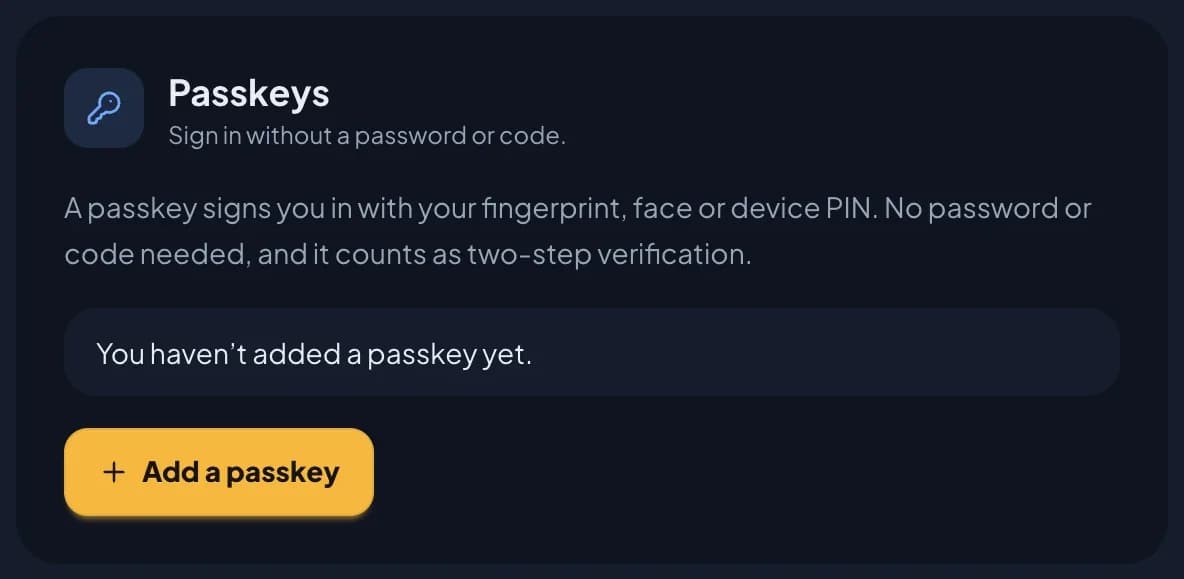
The passkey appears on the card, named after your device or browser. RotaTiger emails you to say it was added.
If you already have a passkey or an authenticator app, RotaTiger may ask you to sign in with one first. See why am I asked to sign in again?
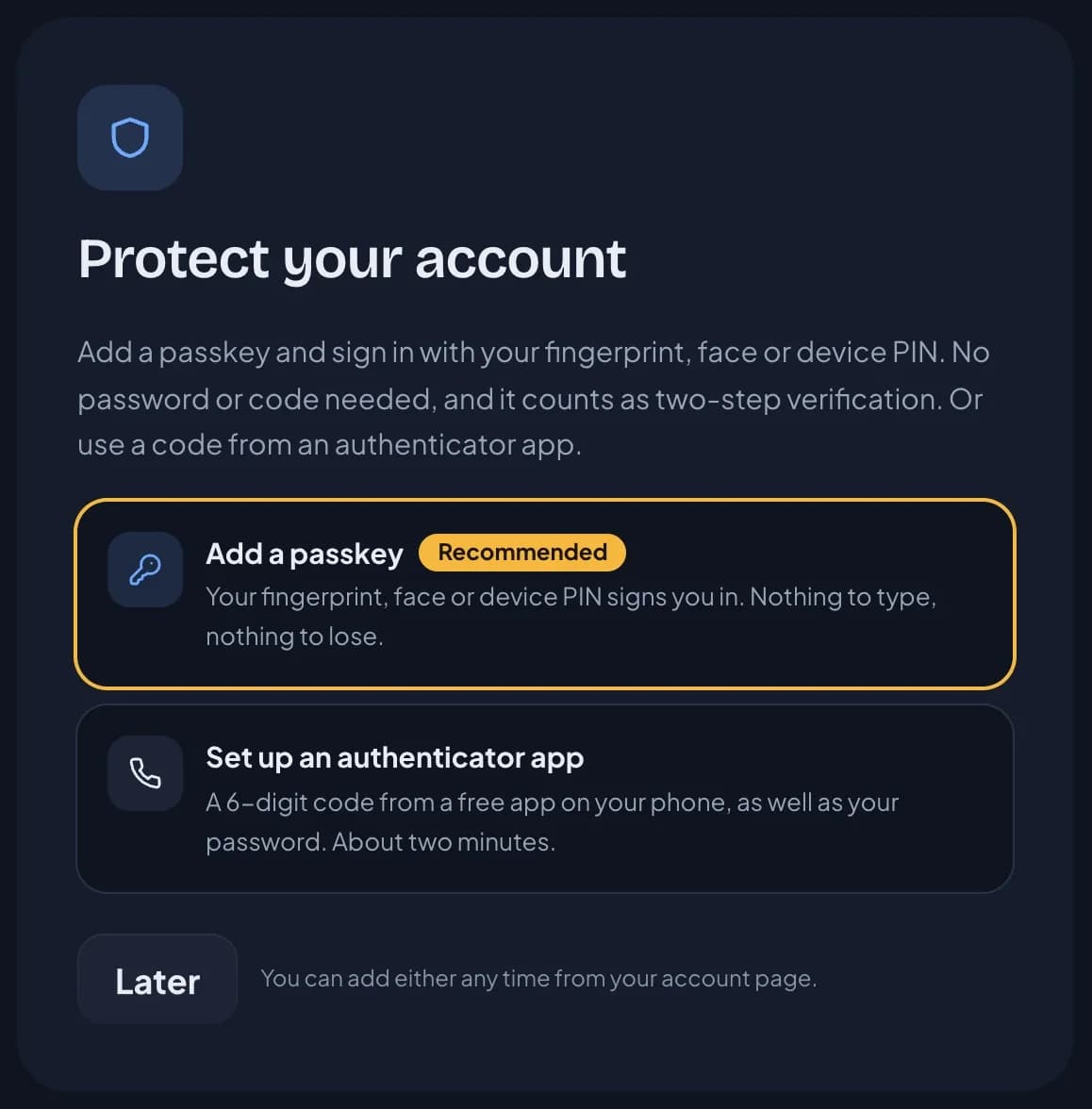
Sign in with a passkey
On the sign-in page, choose Sign in with a passkey. Your device shows the passkeys it holds for RotaTiger. Pick yours and use your face, fingerprint or PIN.
You don’t need to type your email first. In some browsers, clicking the Email box also offers your passkey. Pick it from there.
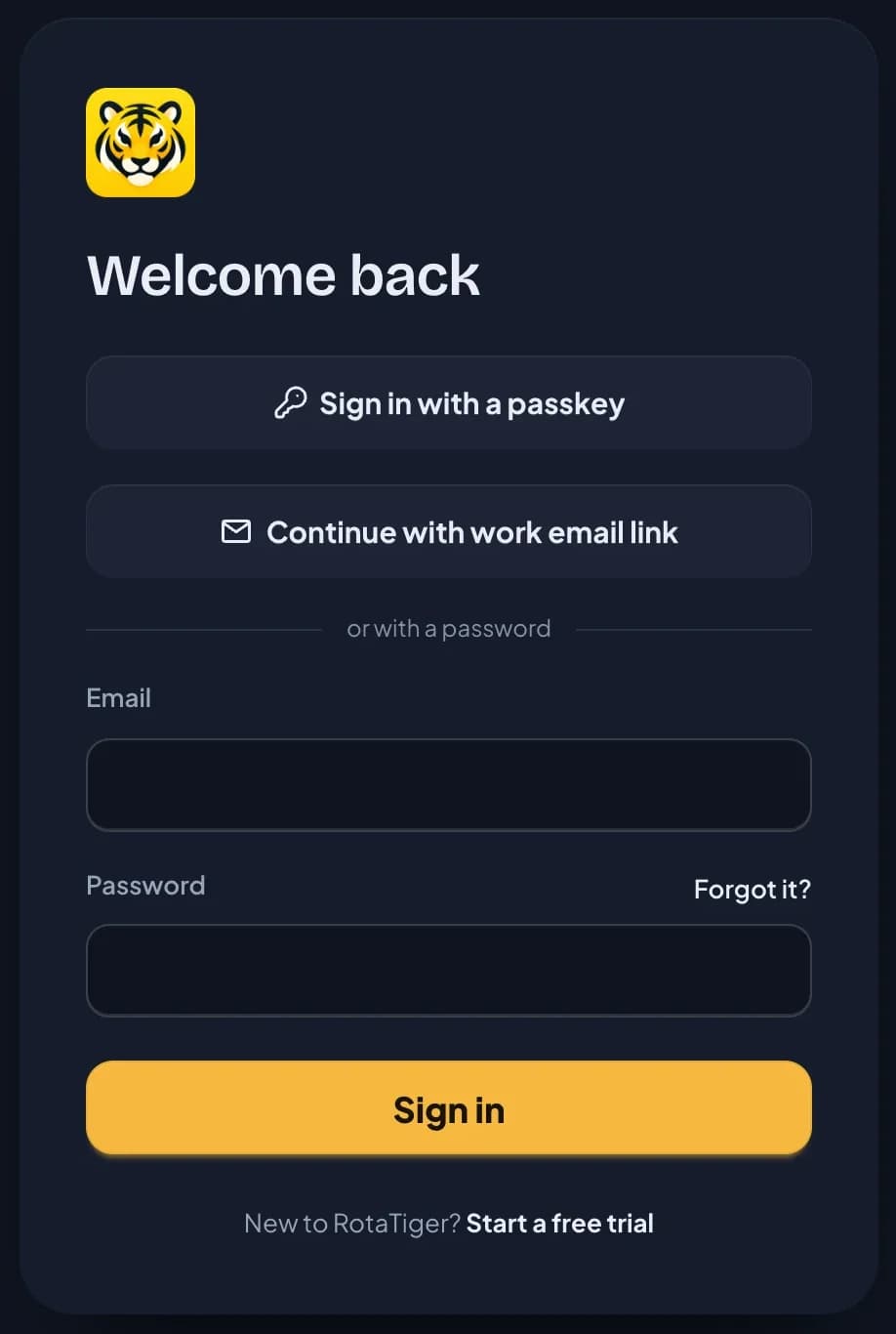
Signing in with a passkey never asks for your authenticator code, even if you have two-step verification on.
Rename or remove a passkey
Each passkey on the card shows when it was added and when it was last used. Synced means it’s backed up by your password manager.
- Rename gives it a name you’ll recognise, such as “Work laptop”. Names can be up to 60 characters.
- Remove asks you to confirm, then the passkey stops working for RotaTiger. RotaTiger emails you to say it was removed. You can also delete it from your device’s password manager.
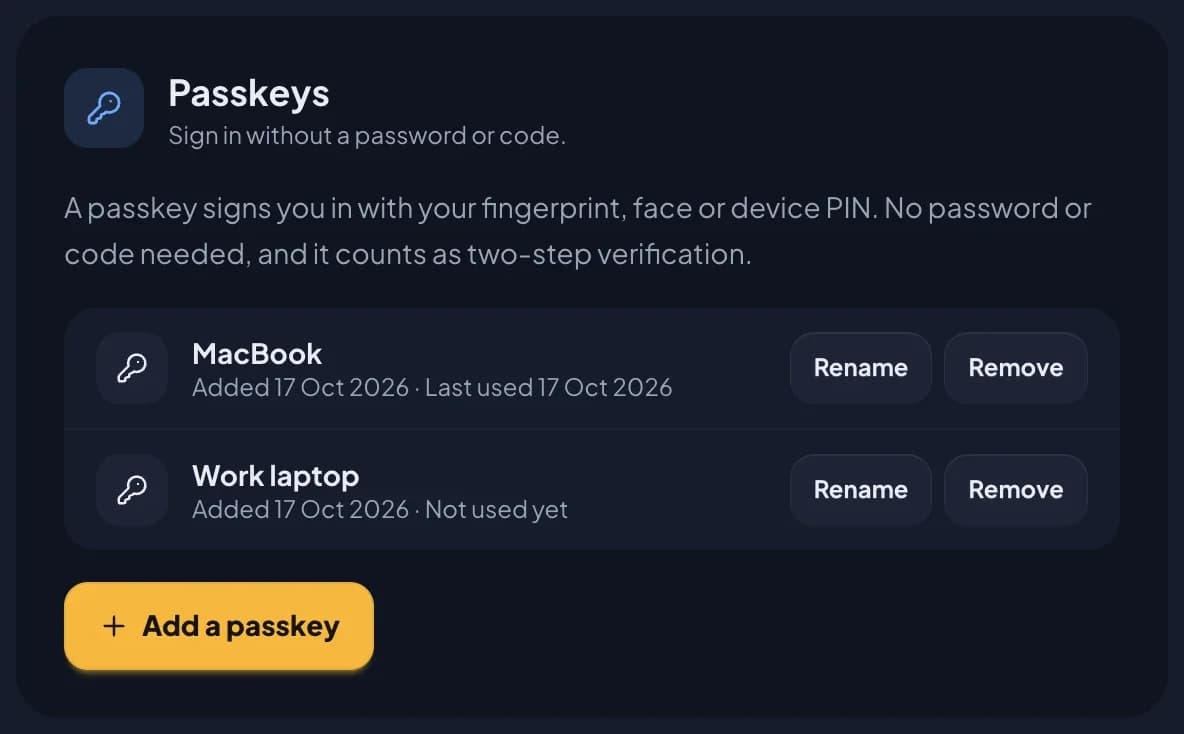
If you lose a device and its passkey doesn’t sync to another one, remove that passkey straight away.
Passkeys and two-step verification
A passkey counts as two-step verification. If your company requires two-step, a passkey meets the rule on its own. You don’t need an authenticator app as well.
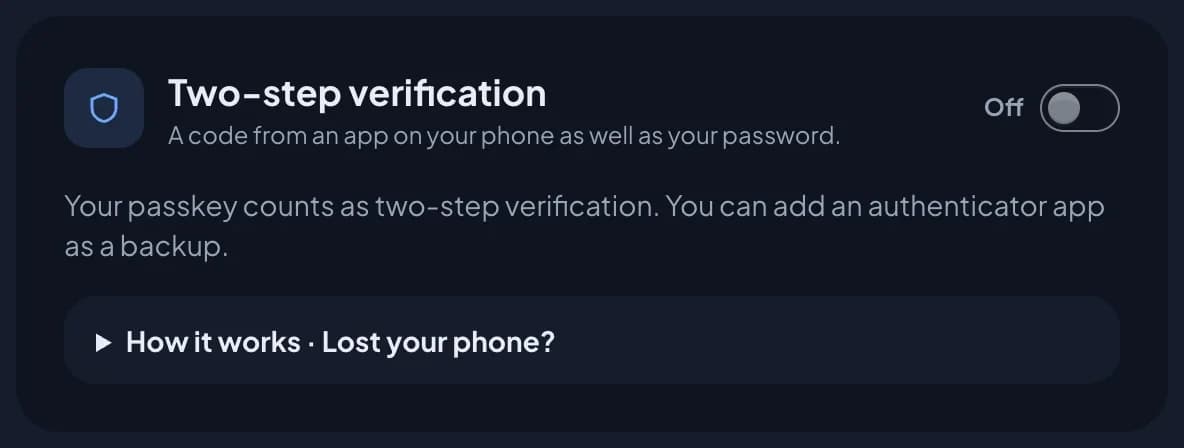
An authenticator app is a good backup. If you lose the device with your passkey, the app and its recovery codes still get you in. The Two-step verification card shows that your passkey counts. You can still turn on the app.
Signing in another way. Passwords, email links and Google still work, if your company allows them. If you also have the authenticator app, you’re asked for its code as usual. If you have a passkey but no app, and your company requires two-step, RotaTiger asks for your passkey before opening your company’s data. Choose Use my passkey, or set up an authenticator app.
Your last passkey. If your company requires two-step and you have no authenticator app, you can’t remove your last passkey. Turn on the app first, or add another passkey.
Why am I asked to sign in again?
Once your account has a passkey or an authenticator app, RotaTiger checks how you signed in before you add or change either one. This covers any change to your passkeys. It also covers turning the app on or off and making new recovery codes.
If you signed in with a passkey or your authenticator code, the change goes ahead. If you signed in with a password, an email link or Google, RotaTiger shows For your security, sign in with your passkey or authenticator app first, then make this change. Choose Sign in with my passkey, confirm on your device, and the change is made.
To use the app’s code instead, sign out. Sign in again with your code, then make the change.
This stops someone who has only your password from adding their own passkey or app to your account.
Lost your device?
If your passkey synced, it comes back. Passkeys in iCloud Keychain come back when you sign in to your Apple Account on a new iPhone, iPad or Mac. Passkeys in Google Password Manager come back when you sign in to your Google Account on a new Android phone. Passkeys in a password manager such as 1Password come back when you sign in to it.
If it didn’t sync, sign in another way:
- Use your authenticator app if it’s on another phone, or a recovery code. Then remove the lost passkey from your account page and add a new one.
- No app, no recovery codes, or a passkey was your only way in? Ask HR or an admin to reset it. This also removes your passkeys, and turns off the authenticator app and recovery codes. Then sign in with your password or an email link and add a new passkey. If your company requires two-step, you’re asked to set one up straight away. See lost your phone?
For admins: the company setting
Passkey sign-in is on for every company by default. To switch it off, go to Settings, then Security & sign-in, and turn off Passkey under Sign-in methods. Then choose Save security settings.
With it off, RotaTiger tells anyone who tries a passkey that your company doesn’t allow it, and offers the ways it does. Someone who belongs to more than one company can only use a passkey if every one of their companies allows it.
While passkeys are off, they don’t count as two-step verification. If your company requires it, people who only have a passkey are asked to set up an authenticator app next time they sign in. Before you switch passkeys off, RotaTiger tells you how many people that affects. Their passkeys stay on their accounts and work again if you switch passkey sign-in back on.
Security emails
RotaTiger emails the person whenever a passkey is added to or removed from their account. The email says what to do if they didn’t make the change: remove the passkey from their account page, change their password and tell HR or an admin.
In the apps
The RotaTiger apps for iPhone and Android are coming soon, and passkeys in the apps are being built. Until then, add and use your passkey on the web.
Troubleshooting
“This browser can’t make passkeys”. Update your browser, or try Chrome, Safari, Edge or Firefox on an up-to-date phone or computer.
“This device already has a passkey for your account”. You’ve already added one here. It’s on the card. Rename it if you can’t tell which it is.
“That passkey isn’t set up for RotaTiger any more. Sign in another way.” The passkey was removed from your account but is still on your device. Sign in another way, then delete the old one from your device’s password manager.
“Your company doesn’t allow signing in with a passkey”. Your company has switched passkey sign-in off. Use one of the ways the message lists, or ask HR or an admin.
Nothing happens when I choose Sign in with a passkey. Check you’re on app.rotatiger.com and your device has a screen lock set. Check you didn’t cancel the prompt, too. To use a passkey from your phone on a computer, turn Bluetooth on for both.
“Turn on an authenticator app before removing your last passkey.” Your company requires two-step verification, so you need another way in first. Turn on the app, or add another passkey, then remove this one.