
What it is
Two-step verification adds a second check when you sign in. After your password, email link or Google (or the code we send you in the app), RotaTiger asks for a 6-digit code. The code comes from an authenticator app on your phone, which makes a new one every 30 seconds.
It’s worth it because a password on its own can be guessed, reused or stolen. With two-step verification on, someone who learns your password, or gets into your email, still can’t sign in without your phone. RotaTiger holds your rota, your leave and your team’s details, so it’s worth the extra few seconds.
Setting it up takes about two minutes.
Rather not type a code? A passkey signs you in with your face, fingerprint or device PIN, and it counts as two-step verification. You can use both: a passkey day to day and the authenticator app as a backup.
Before you start
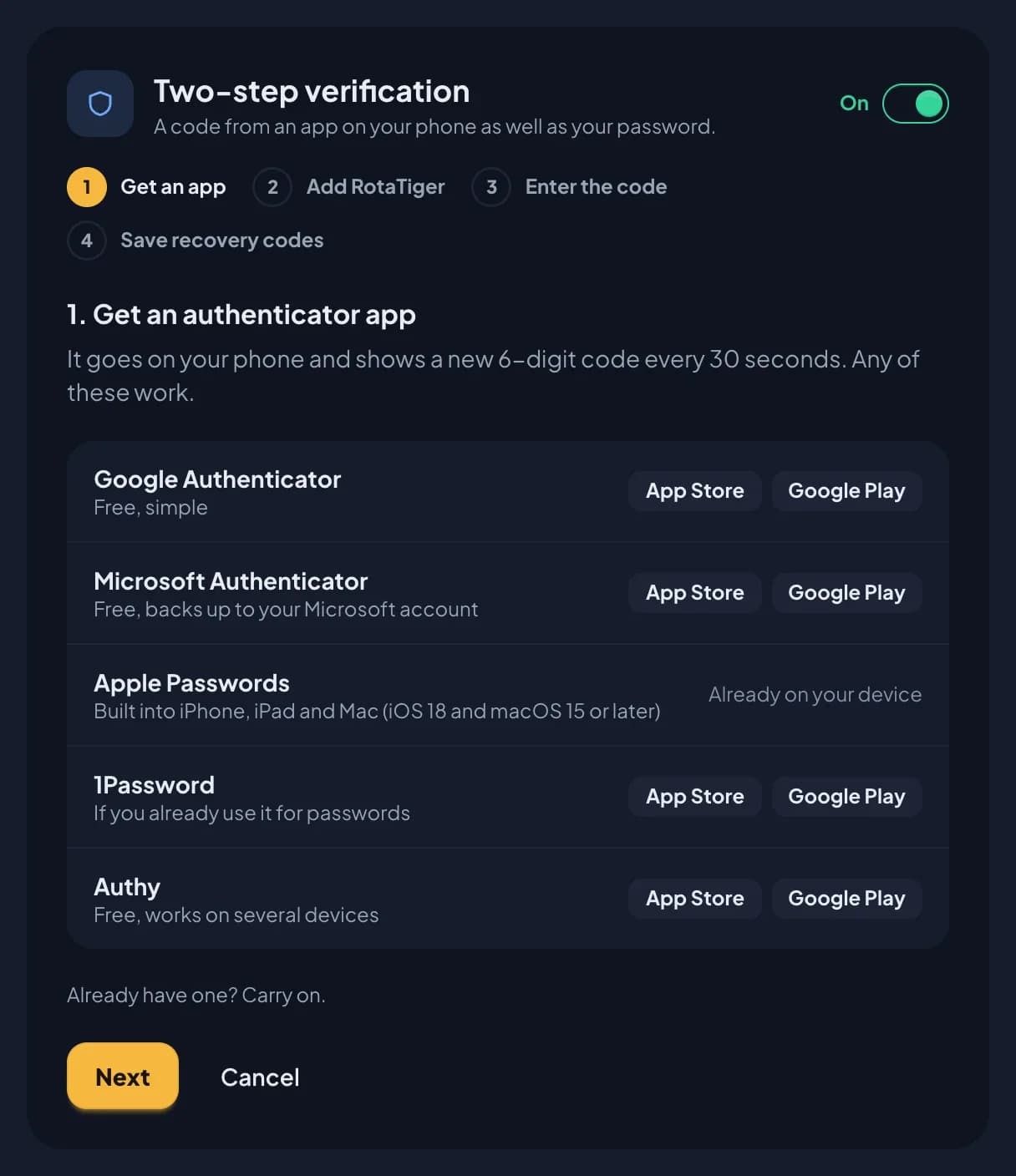
You need your phone and an authenticator app on it. If you already have one, use it: RotaTiger sits alongside your other accounts. If not, any of these work:
| App | Get it |
|---|---|
| Google Authenticator (free) | App Store · Google Play |
| Microsoft Authenticator (free) | App Store · Google Play |
| Apple Passwords (free) | Built into iPhone, iPad and Mac with iOS 18 or macOS Sequoia and later. Nothing to install. |
| 1Password (paid) | App Store · Google Play |
| Authy (free) | App Store · Google Play |
Turn it on, on the web
- Sign in at app.rotatiger.com.
- Click your name at the top right and choose Account & password.
- Under Two-step verification, turn the switch on.
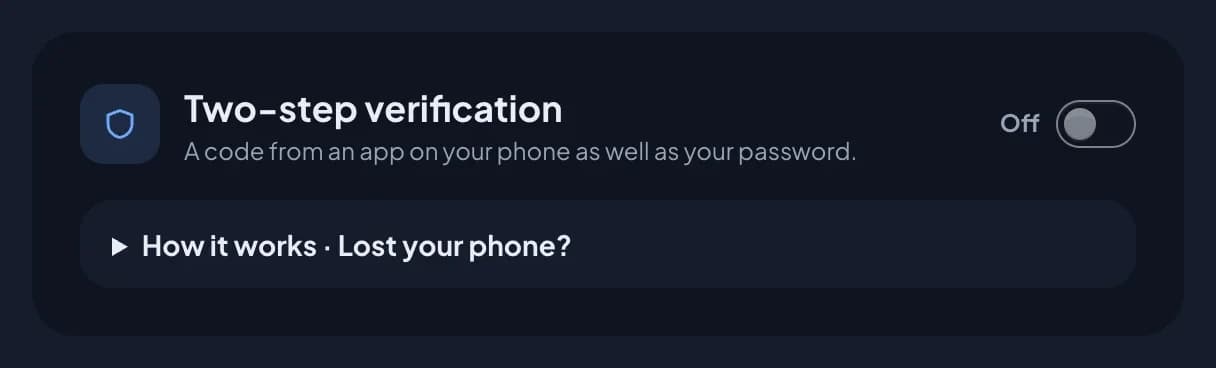
Four short steps follow. You can go back at any point, and nothing changes until you enter a code in step 3.
Step 1: Get an authenticator app
RotaTiger lists the apps above, with App Store and Google Play links. Install one on your phone. Already have one? Choose Next.
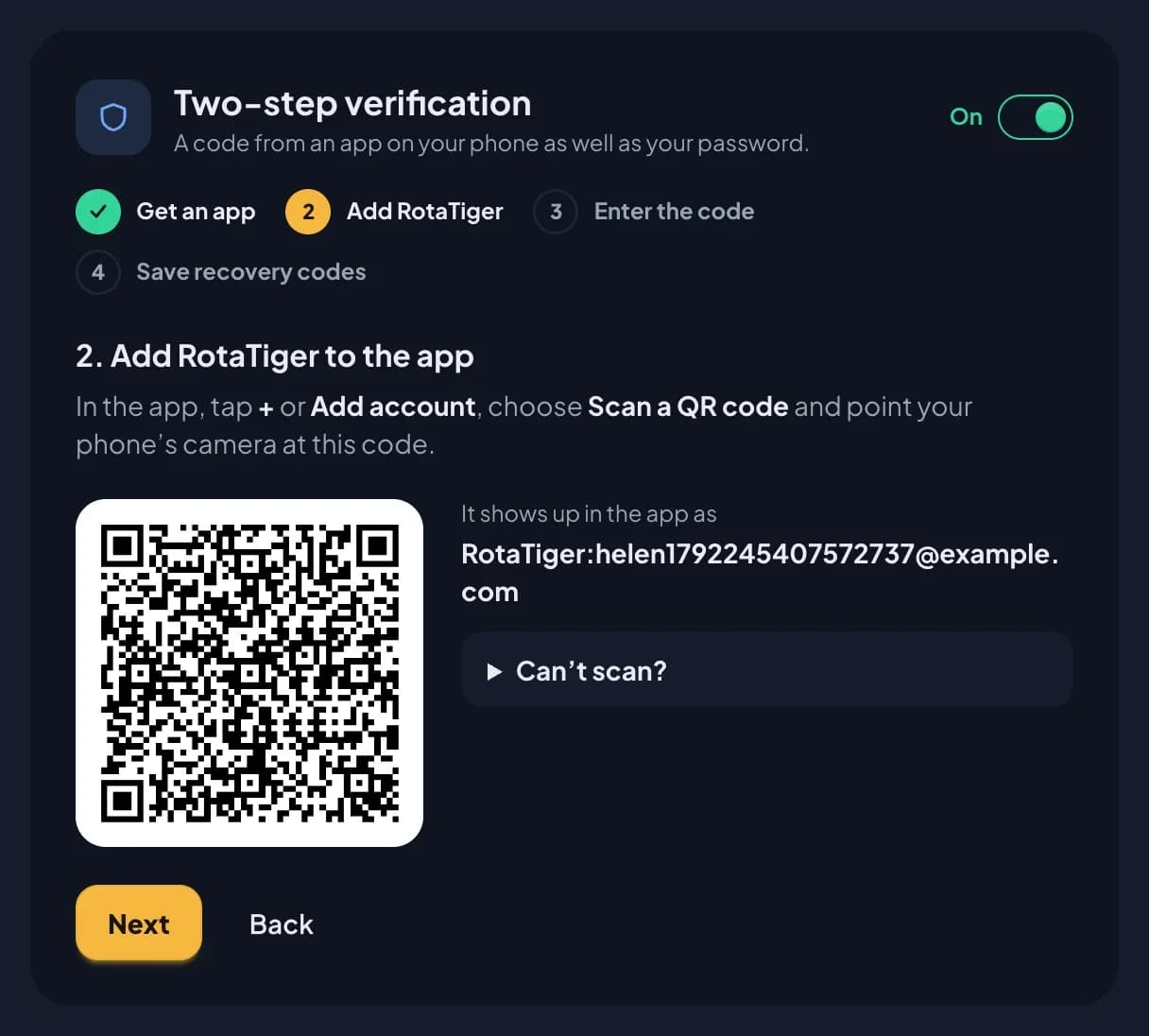
Step 2: Add RotaTiger to the app
In the authenticator app, tap + or Add account, choose Scan a QR code, and point your phone’s camera at the code on the screen. It shows up in the app as RotaTiger with your email address. Then choose Next.
Can’t scan it? Choose Can’t scan? to see the key, a line of letters and numbers, and Copy key. In the app, choose Enter a setup key (or Enter code manually), name it RotaTiger and type the key. If the app asks, it’s time-based.
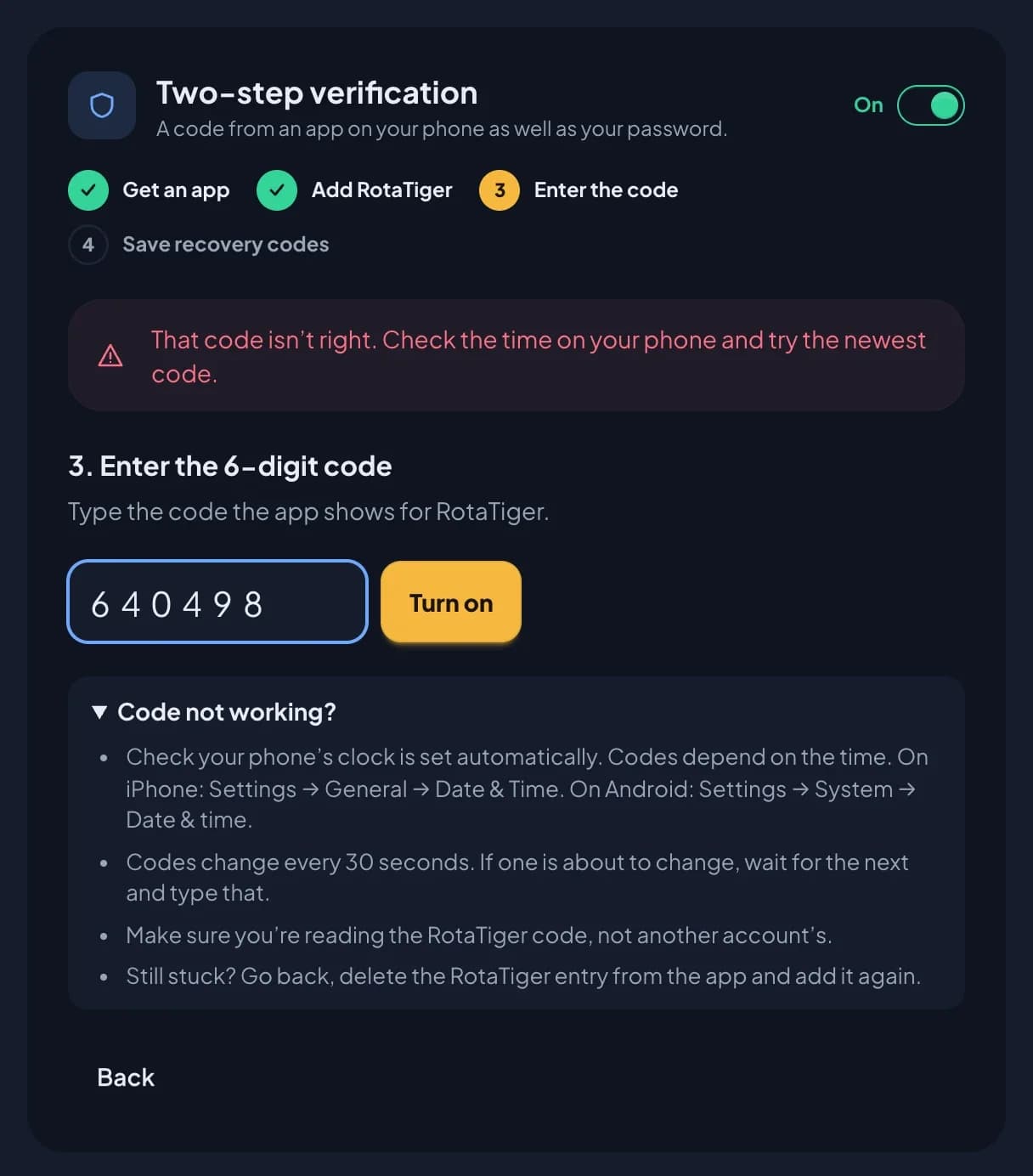
Step 3: Enter the 6-digit code
Your authenticator app now shows a 6-digit code for RotaTiger. Type it in and choose Turn on.
If RotaTiger says the code isn’t right, check your phone’s clock is set automatically and type the newest code. Code not working? under the box has more help, and so does troubleshooting below.
Step 4: Save your recovery codes
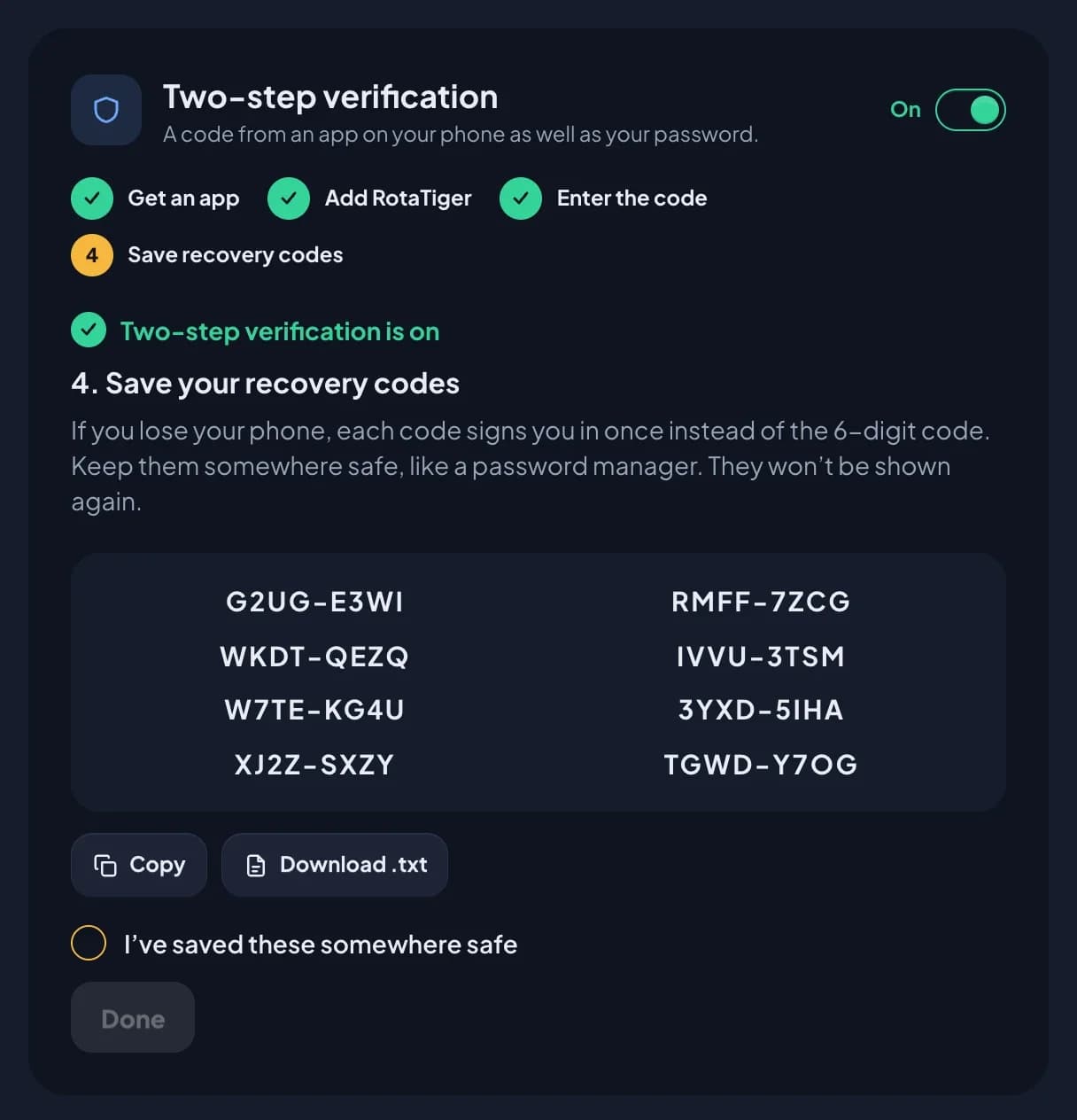
Two-step verification is now on. RotaTiger shows you 8 recovery codes. Each one signs you in once if you can’t use your phone. You won’t see them again, so save them now:
- choose Copy and paste them into your password manager, or
- choose Download .txt and keep the file somewhere safe that isn’t your phone.
Tick I’ve saved these somewhere safe, then choose Done. RotaTiger emails you to say two-step verification is on.
Turn it on in the app
The RotaTiger apps for iPhone and Android are coming soon. Until then, turn it on on the web as above: it covers your account everywhere, so the apps will ask for your code too. Once you have the app, you can also turn it on from there, like this.
- Open the Me screen. Under Security, turn on Two-step verification.
- Get an authenticator app. Already have one? Skip this step.
- Add RotaTiger. Tap Open in my authenticator app. Your authenticator app opens with everything filled in, so just save it. If nothing opens, tap Copy key and type the key into the authenticator app yourself. If your authenticator app is on a different phone or tablet, scan the QR code with that device instead.
- Enter the 6-digit code the authenticator app shows for RotaTiger.
- Save your recovery codes with Copy or Share, tick I’ve saved these, and carry on.
Signing in with a code
Once it’s on, signing in has one more step. It works the same on the web and in the apps:
- Sign in as usual. On the web that’s your password, an email link or Google. In the app, it’s the code we send to your email or mobile.
- RotaTiger asks for your code. Open your authenticator app and type the 6-digit code it shows for RotaTiger.
You’re asked when you sign in, not every time you open RotaTiger. Sign in with a passkey and there’s no code.
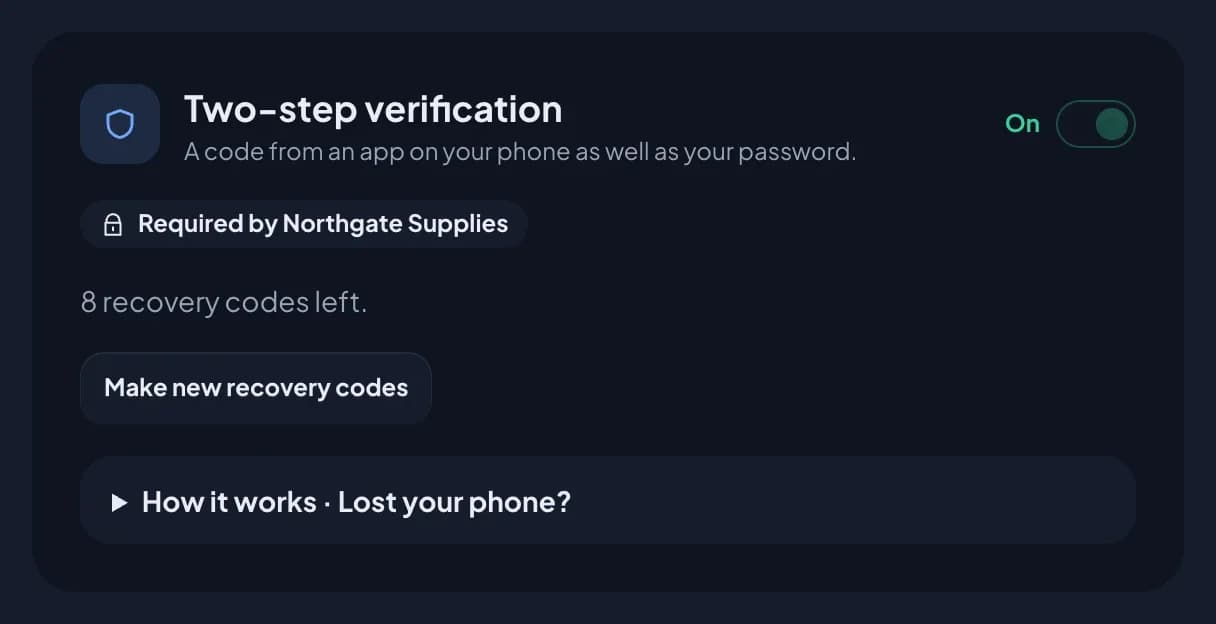
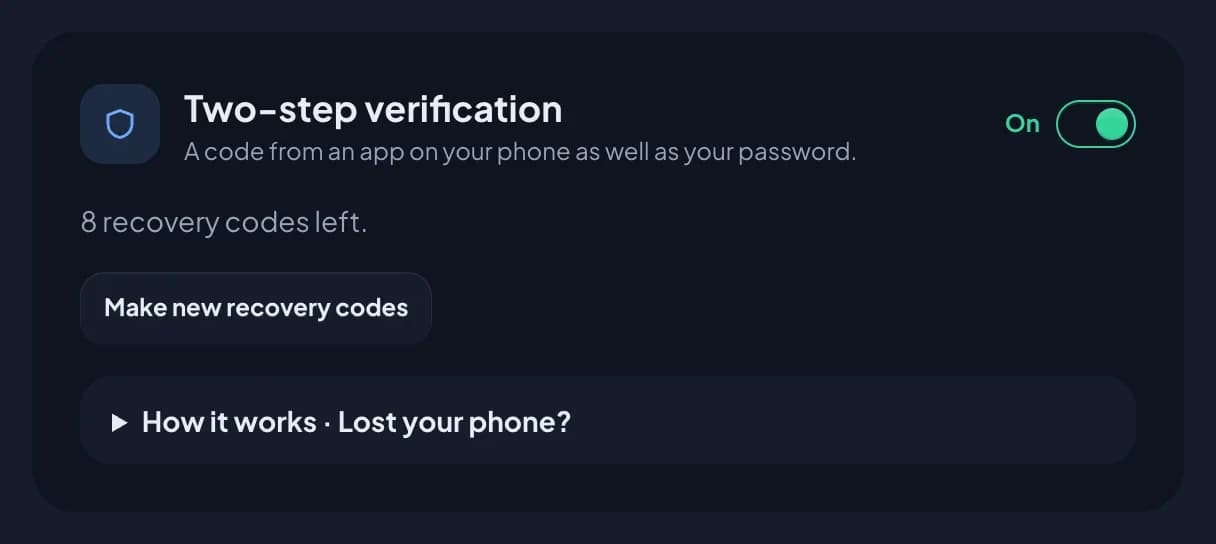
Can’t use your phone? Type one of your recovery codes in the same box instead. In the apps, tap the link to use a recovery code first. Each recovery code works once, then it’s used up. The card on your account page shows how many you have left.
Turning it off
- On the web, go to Account & password. In the app, open Me.
- Turn the Two-step verification switch off.
- Type a current 6-digit code from your authenticator app, or one of your recovery codes, to confirm.
RotaTiger emails you to say it’s off. You can then delete the RotaTiger entry from your authenticator app.
If your company requires two-step verification for you, the switch is locked on and says Required by and your company’s name. You can’t turn it off unless you have a passkey, which meets the rule on its own. Ask HR or an admin if that’s a problem.
New recovery codes
Used some of your recovery codes, or lost the list? Make a new set:
- On your account page, choose Make new recovery codes.
- Type a current 6-digit code from your authenticator app.
- Save the 8 new codes, as in step 4 above.
Your old recovery codes stop working straight away.
Lost your phone?
Sign in with a passkey if you have one on another device, such as your laptop. No code needed.
Or sign in with a recovery code. When RotaTiger asks for the 6-digit code, type a recovery code instead.
Then set it up on your new phone:
- If your authenticator app backs up or syncs, sign in to it on the new phone and your RotaTiger codes come back. Make new recovery codes if you used one.
- If it doesn’t, turn two-step verification off with another recovery code, then turn it back on with the new phone.
- If your company requires it, you can’t turn it off, so ask HR or an admin to reset it instead.
No recovery codes left? Ask HR or an admin at your company to reset your two-step verification. This also removes your passkeys. You’ll get an email to say it’s been reset. Next time you sign in, you won’t be asked for a code. If your company requires two-step verification, you’re asked to set it up again straight away.
If you’re the only admin and you’ve lost both your phone and your codes, contact us.
For admins: the company setting
HR and admins choose how two-step verification works for the whole company. Go to Settings, then Security & sign-in, and pick one of the four options under Two-step verification. Then choose Save security settings.

- Off. Two-step verification isn’t offered, so nobody can turn it on. People who already have it on keep it, and can still turn it off.
- Optional. This is the default. Anyone can turn it on for their own account, and nobody has to.
- HR and admins. Required for everyone with the HR or Admin role, and for the company’s owner. Optional for everyone else.
- Everyone. Required for everyone who signs in to RotaTiger.
When it’s required, anyone who hasn’t set it up yet is asked to add a passkey or set up an authenticator app the next time they use RotaTiger, before they can carry on. Either one meets the rule, though a passkey only counts while your company allows passkey sign-in. Once the authenticator app is on, their switch is locked on unless they also have a passkey. Every change to the setting is recorded in the audit log.
Someone who belongs to more than one company has it required if any of their companies requires it. It’s only hidden for them if every one of their companies has it Off.
Resetting it for someone
If someone has lost their phone and their recovery codes, or lost a passkey that didn’t sync:
- Go to People and open the person.
- Under Account, choose Reset two-step verification, then confirm.
This turns off their authenticator app and removes their passkeys and recovery codes. They can then sign in with their password or an email link and set up a new passkey or app. If your company requires two-step verification, they’re asked to set it up again when they next sign in. The reset is recorded in the audit log, with what was removed.
The option only shows for people who have the authenticator app on or a passkey, and not for yourself. Before you reset it, check the request really came from them, for example by speaking to them in person or on the phone.
Security emails
RotaTiger emails the person whenever two-step verification is turned on, turned off or reset, and when a passkey is added or removed. A reset email says who reset it. Anyone who gets one of these emails and didn’t expect it should tell HR straight away.
Troubleshooting
“That code isn’t right”
- Set your phone’s time automatically. Codes depend on the clock, so a phone that’s a minute out gives the wrong code. On iPhone: Settings → General → Date & Time, and turn on Set Automatically. On Android: Settings → System → Date & time, and turn on the automatic setting. The names vary a little between phones.
- Use the newest code. Codes change every 30 seconds. If the one on screen is about to change, wait for the next one and type that.
- Check it’s the RotaTiger code, not one for another account in the same app.
- Still stuck while setting up? Go back, delete the RotaTiger entry from the authenticator app, and add it again.
“Too many wrong codes. Try again in a few minutes.” After several wrong codes in a row, RotaTiger pauses sign-in for your account for a few minutes to keep it safe. Wait, then try again with the newest code.
The QR code won’t scan. Choose Can’t scan? and type the key into the app instead. In the RotaTiger app, use Open in my authenticator app or Copy key.
“That sign-in has timed out. Start again.” You have 10 minutes to enter the code after the first step of signing in. Sign in again from the start.
There’s no switch, just “Your company hasn’t turned on two-step verification”. Your company has it set to Off. Ask HR or an admin if you’d like it.