
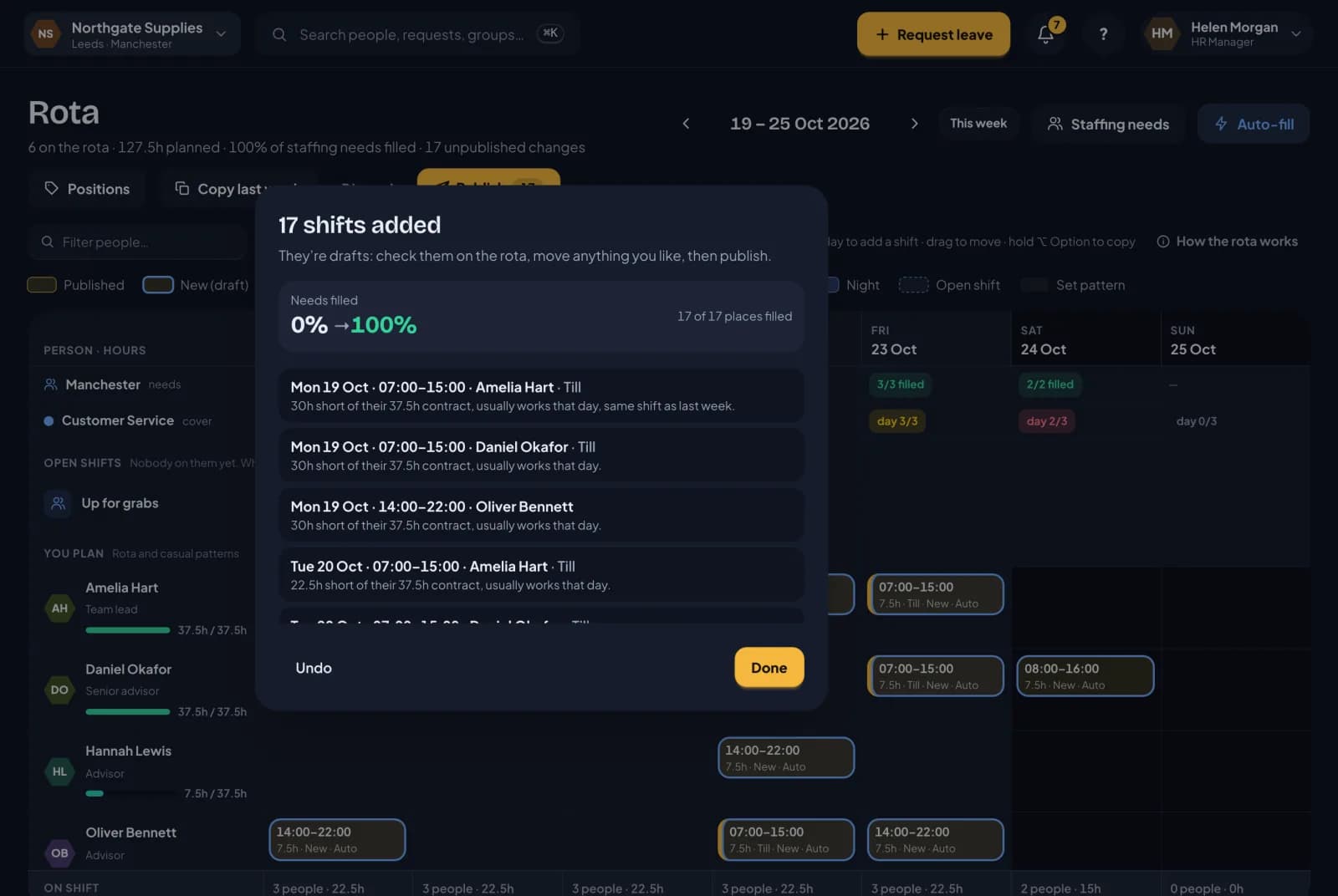
Planning a week by hand is fine for five people. For twenty, across two locations, with half of them part-time, it’s an afternoon. Auto-fill does the first draft for you.
It works from your staffing needs, so set those up first. The Auto-fill button on the rota is ready once the week has needs to fill.
Running it
Go to the week you want to plan and click Auto-fill. RotaTiger explains what it’s about to do:
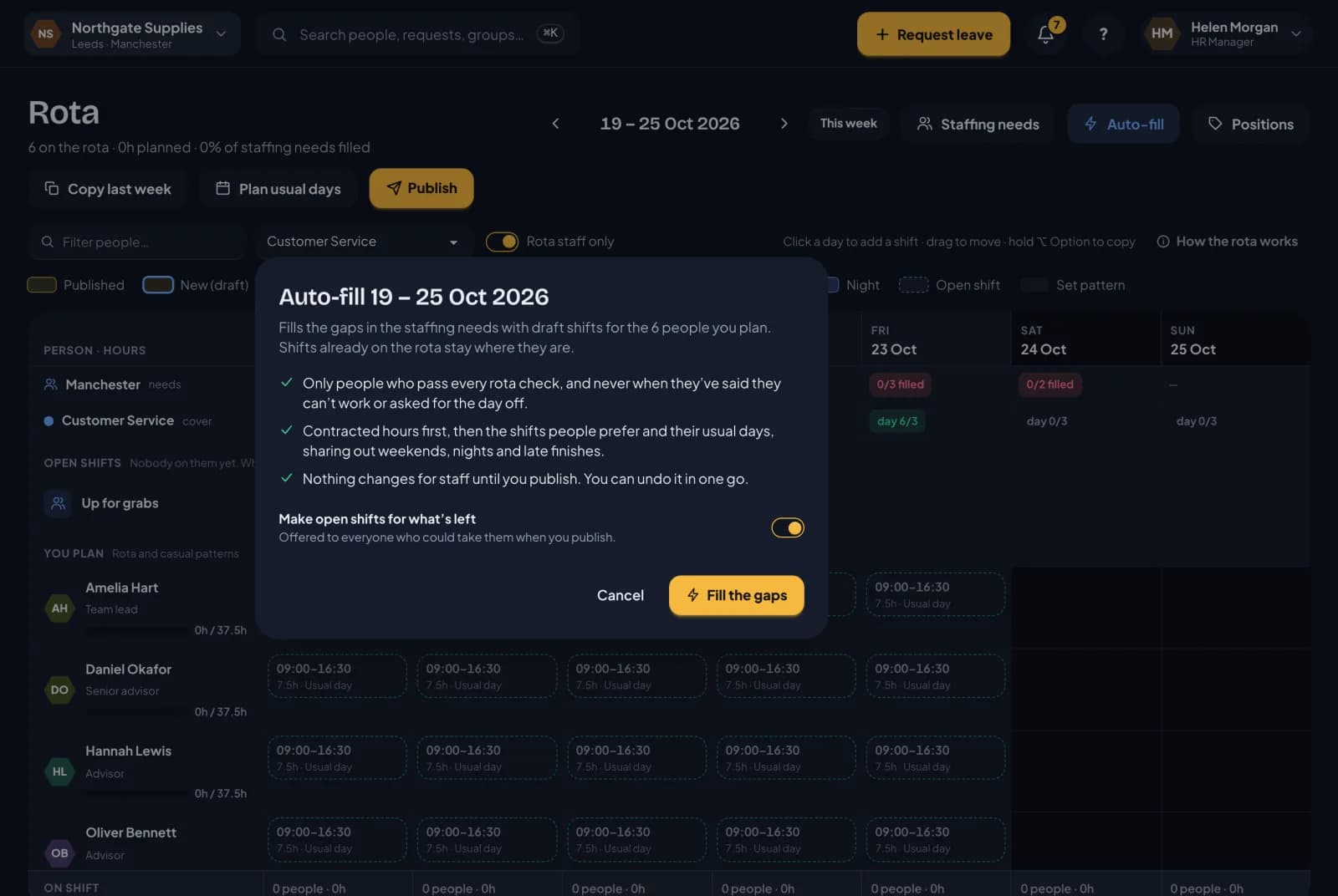
- If you have more than one location, choose one or plan them all.
- Choose whether anything it can’t fill should be added as open shifts, offered to everyone who could take them when you publish.
Click Fill the gaps. Shifts already on the rota stay where they are. Auto-fill only adds to them.
What it’s careful about
Auto-fill only puts someone on a shift if they pass every rota check, including the ones that are only warnings when you plan by hand. So it never:
- breaks a weekly cap, the longest shift, or the 17-week average
- leaves someone short of rest
- books someone on leave, off sick, or with a request for the day off waiting for approval
- books someone when their availability says they can’t work
- gives someone two shifts on the same day
- puts someone on a position they aren’t set up for
How it chooses
For each gap, starting with the hardest to fill, Auto-fill scores everyone who could work it. These count most to least:
- Contracted hours first. People furthest below their contracted hours get the shift.
- Preferences. A gap that matches the times someone prefers counts in their favour.
- Usual days. So does a day they normally work.
- Last week. A shift like one they worked last week counts a little, so the rota stays steady.
- Fairness. Weekends, nights and late finishes are shared out, looking back over the last four weeks, so the same people don’t always get them.
Every shift it adds says why that person was chosen, such as “30h short of their 37.5h contract, usually works that day, same shift as last week”. Hover over a shift tagged Auto to see it.
The result
When it’s done, RotaTiger shows what it added, how full your staffing needs were before and after, and anything still to fill, each with the reason nobody could take it.
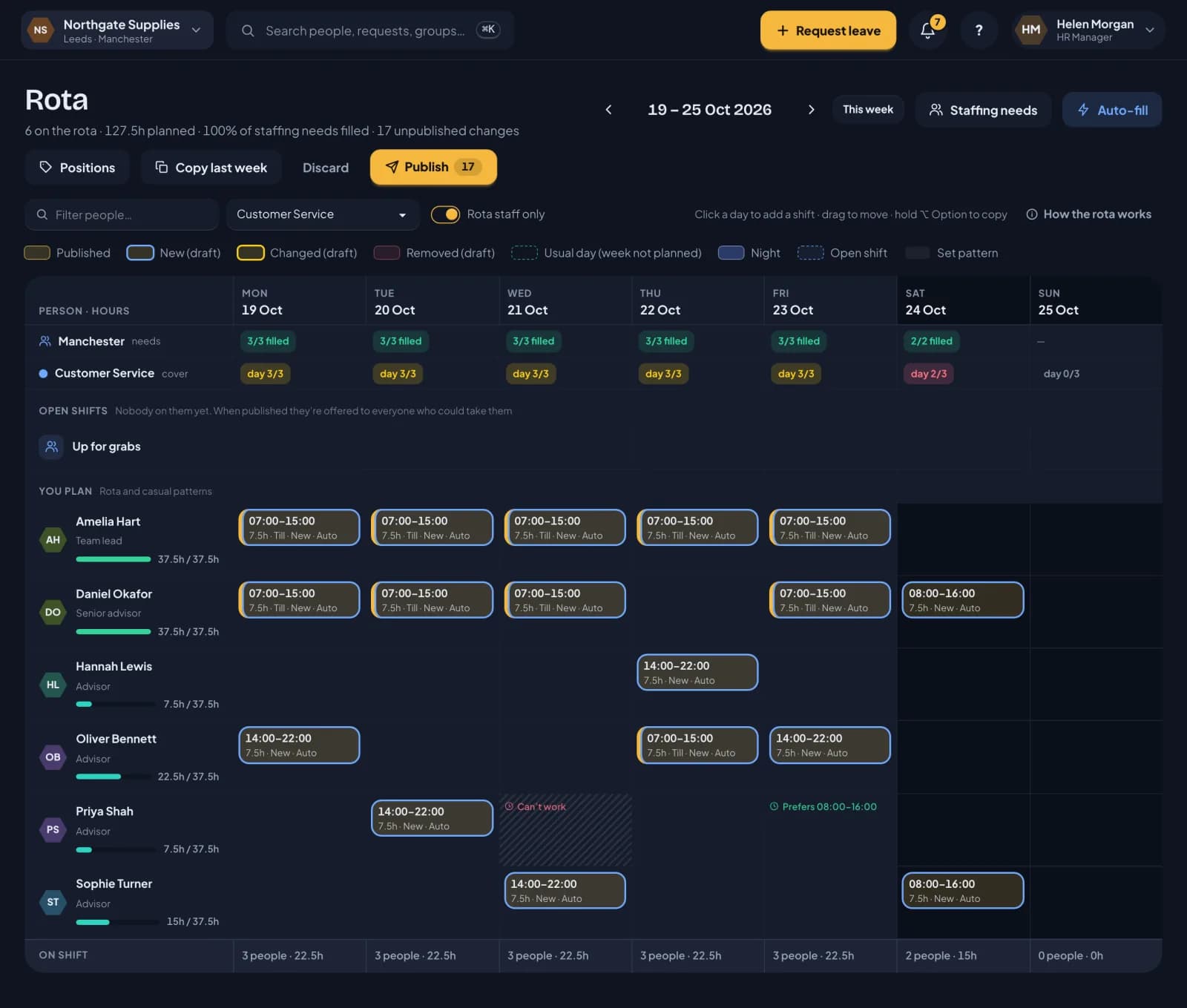
The new shifts are ordinary drafts, marked Auto. Check them, move anything you like, then publish as normal.
Undo
Changed your mind? Undo in the result removes every shift that run added. If you’ve already edited one of them by hand, it counts as yours and stays.
Next: what your staff see.