
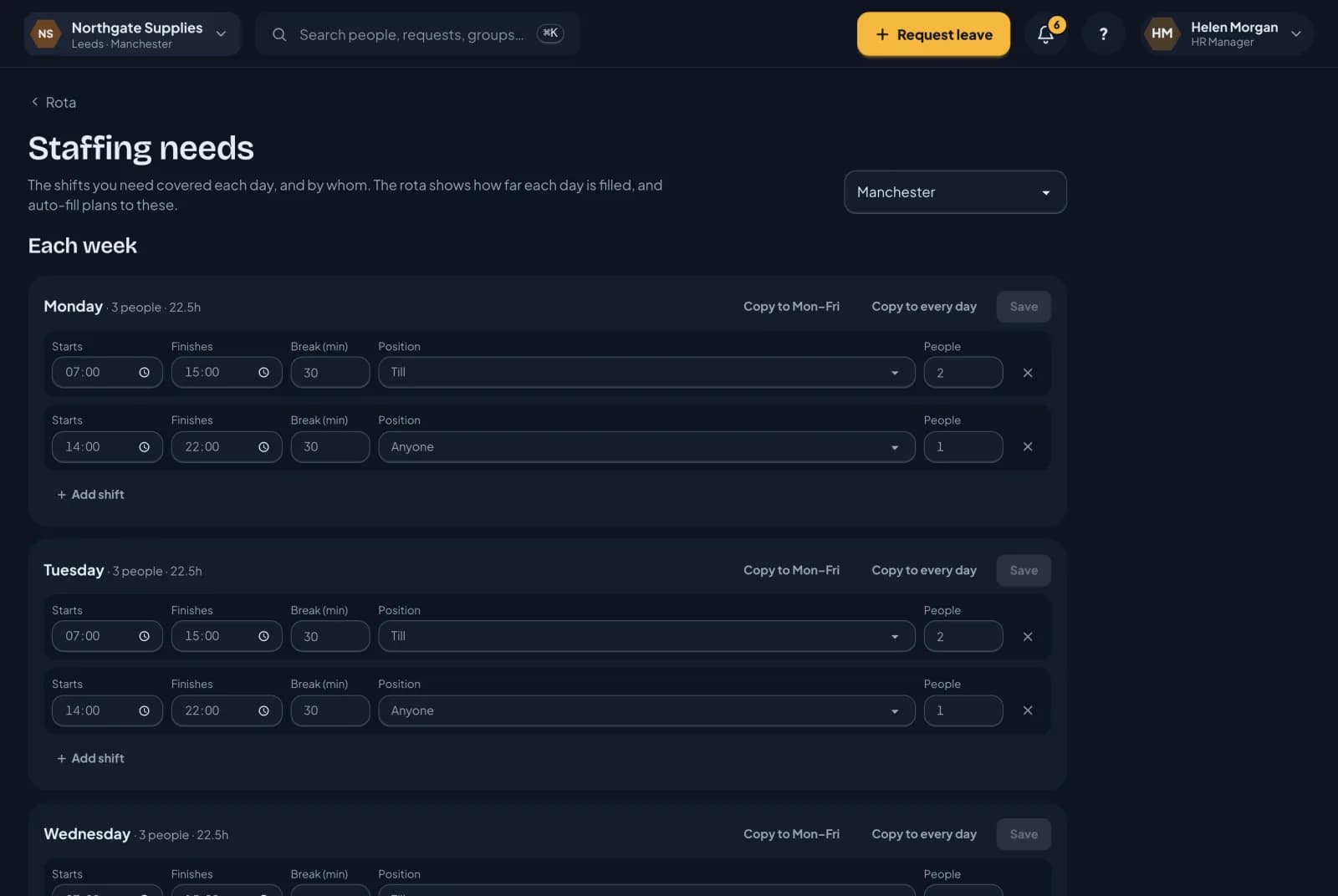
Staffing needs are how you tell RotaTiger what a good week looks like: how many people you need, at what times, and doing what. Once they’re set, the rota shows how close each day is, and Auto-fill can draft the shifts to meet them.
Positions
A position is what someone does on a shift: Till, Supervisor, Driver, First aider. Open Positions on the rota to add them. Each one has a colour and a list of who can work it. Leave the list empty and anyone can.
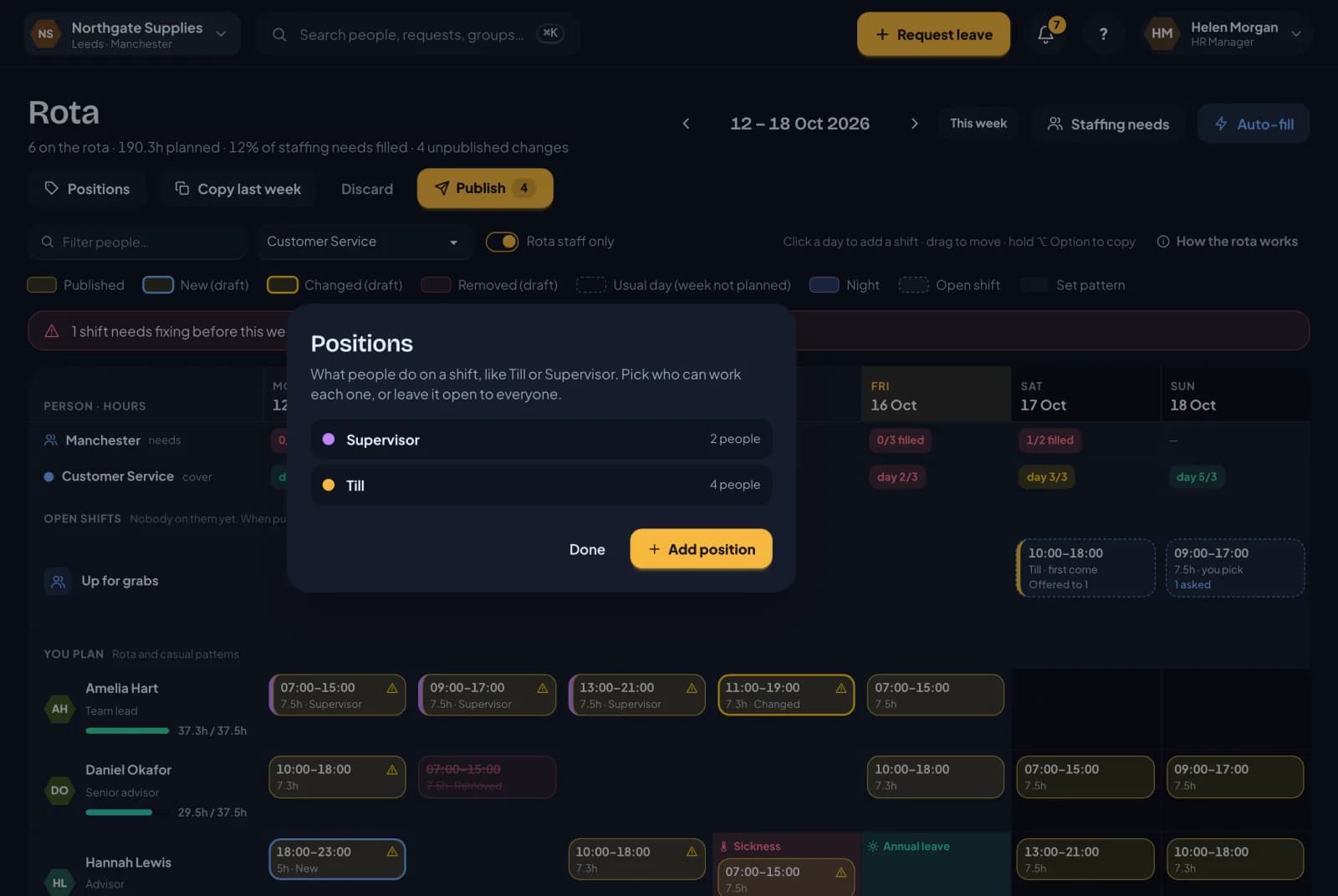
Shifts with a position show its colour down their left edge and its name under the times. RotaTiger won’t put someone on a position they aren’t set up for.
Positions are set up by HR, and are optional. If your team all do the same job, you don’t need them.
Staffing needs
Open Rota schedules, from the rota or from Planning in the menu. Needs are set for each location, because a shop and a warehouse need different things.
For each day of the week, add the shifts you need covered. Each one has:
- a start and finish time, and an unpaid break
- a position, or anyone
- how many people you need on it
Set up Monday, then use Copy to Mon–Fri or Copy to every day so you don’t type the same thing seven times.
For example, Monday to Friday you might need two people on the till from 07:00 to 15:00 and one from 14:00 to 22:00, and on Saturday two from 08:00 to 16:00.
Some days are different. Add a change for a particular date, such as a late-night opening before Christmas, or mark a date as closed. It applies to that date only, and the normal week carries on afterwards.
Whole weeks can be different too, such as a bank holiday week or Christmas week. Those are staffing needs templates, and a template for bank holiday weeks is used automatically.
HR sets staffing needs. Managers who plan the rota can see them.
Seeing cover on the rota
With needs set, the rota has a row for each location across the top. Each day shows how many places are filled out of how many are needed:
- green when every place is filled
- amber when the gaps are covered by open shifts that nobody has taken yet
- red when some places have nobody on them
Hover over a day to see each slot: its times, its position and how many are filled. Slots that are short are listed under the count, and clicking one starts a shift for it. The subtitle under Rota shows the week as a percentage, such as “82% of staffing needs filled”, and the week progress panel breaks it down by day.
What counts as filling a need
A shift fills a place when it’s on the same day and at the same location, has the same position (or the need is for anyone), and covers the needed hours, give or take 15 minutes. Each shift fills one place. An open shift counts as open rather than filled until someone takes it.
Next: templates.