
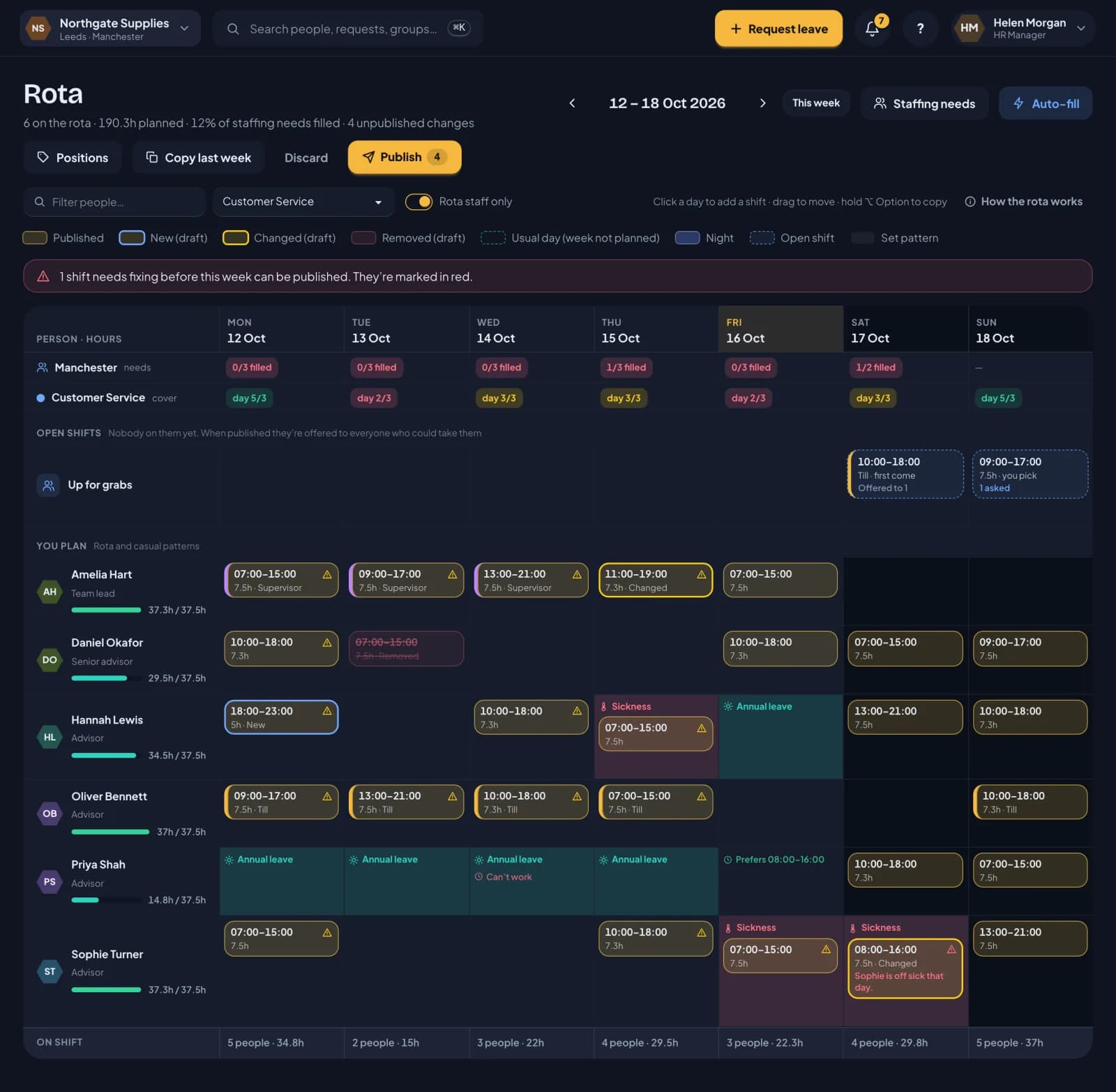
The rota lives under Rota in RotaTiger. It shows one week at a time, Monday to Sunday, with the people you plan down the side and the days across the top. Use the arrows to move between weeks, and This week to come back.
What’s on the grid
The grid is split into sections:
- Staffing needs and cover across the top. If you’ve set staffing needs, each location gets a row showing how many places are filled each day. Groups with minimum cover rules get a row too, green when there are enough people and amber or red when there aren’t.
- Open shifts, the row called Up for grabs. These are shifts with nobody on them yet. See open shifts.
- You plan: everyone on a rota or casual pattern that you’re allowed to plan.
- Everyone else: people on set patterns, and rota staff someone else plans. They’re shown so you can see who else is in, but you can’t change them here.
Under each name is a bar showing that person’s planned hours against their contract, or against their weekly cap if they’re casual. It turns green when you’re within an hour of their contract, and warns you if you go over.
Leave, sickness and availability show inside each day. Holiday is tinted in its leave type’s colour, a whole day someone can’t work is hatched, and a short note shows times they can’t work or would prefer to.
The On shift row at the bottom totals each day: how many people are working, and how many paid hours.
Hover over the grid and the row and day under your pointer are highlighted, which helps on a wide week.
Prefer to see shifts down the side instead of people? Switch to By shift. It has its own page: by shift, and fairness.
Week progress
Above the grid, the week progress panel shows how far the week is planned:
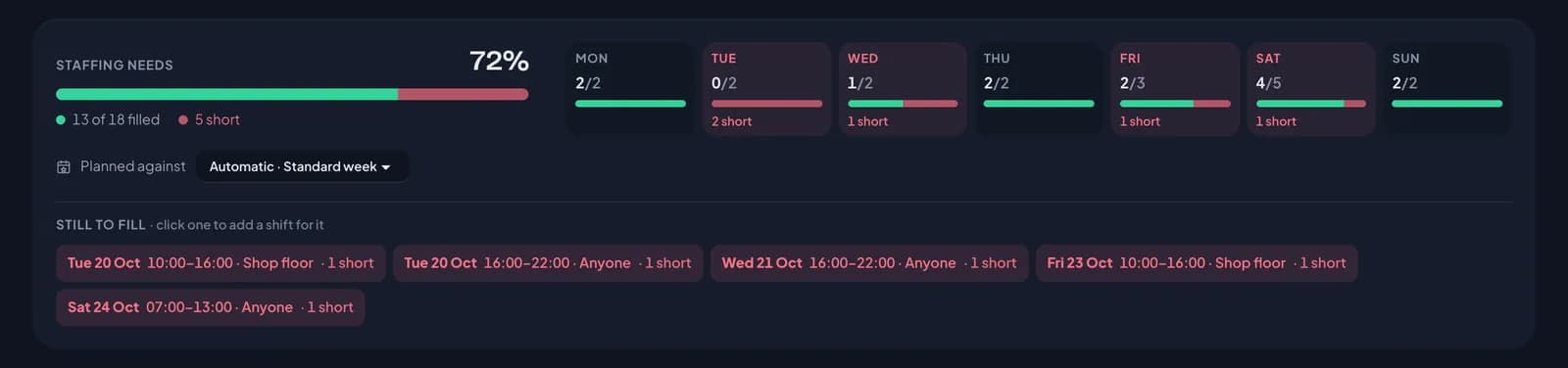
- Staffing needs: how many places are filled, offered as open shifts, or short, for the whole week and for each day. Days that are short are marked in red.
- Contracted hours: the hours planned for your rota staff against the hours they’re contracted for, and how many people are still under.
- Planned against: which staffing needs template the week uses, such as the standard week or a bank holiday week.
- Still to fill: each gap, with its day, times and position. Click one and the shift editor opens with its day, times and position filled in, as an open shift. Choose someone, or leave it open for your team to take.
Adding a shift
Hover over an empty day in someone’s row and click + Shift. The shift editor opens with the person and day filled in.
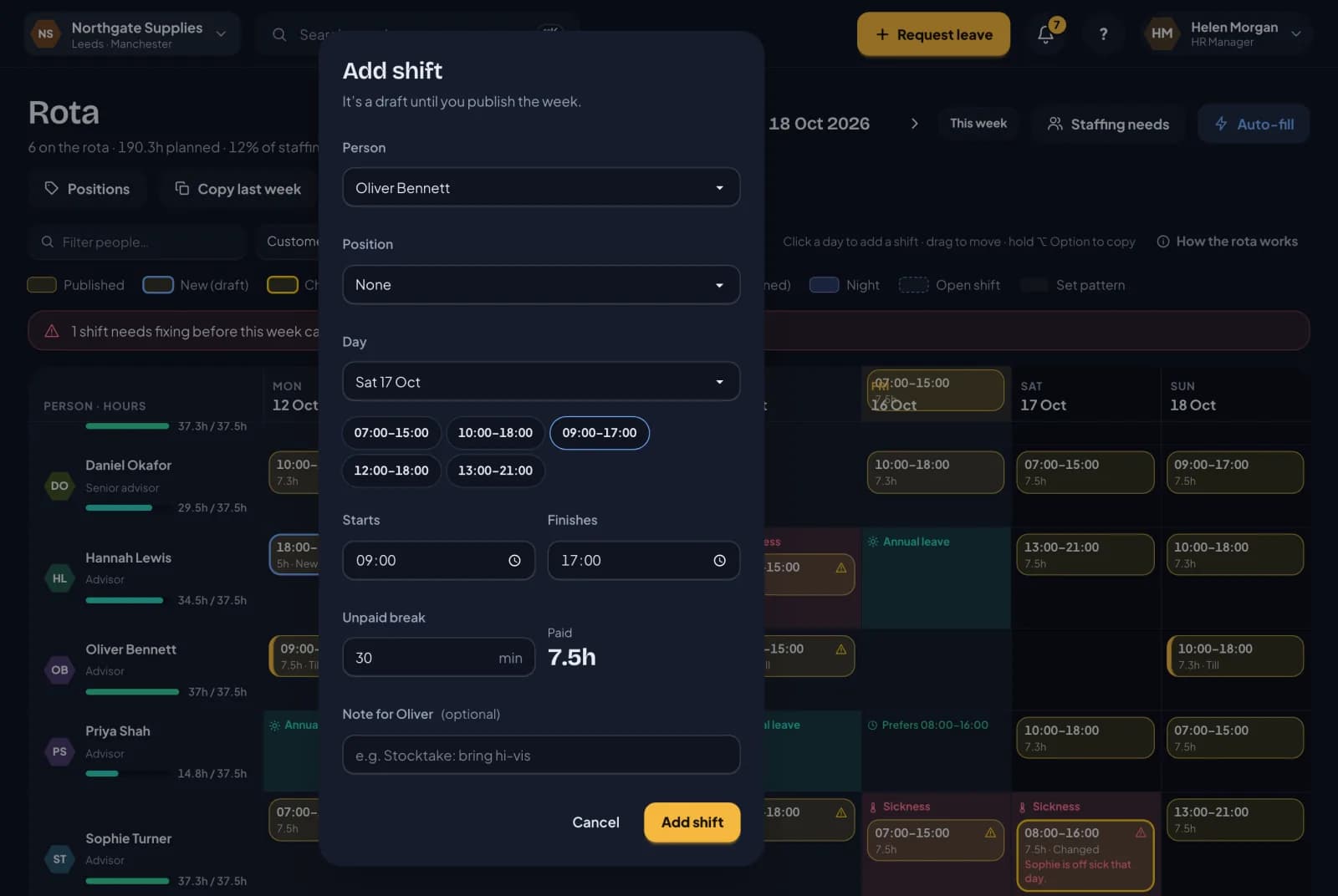
Pick a start and finish time, or click one of the quick times along the top. These are the week’s most common shifts, so the second shift you add is usually one click. Add an unpaid break, and RotaTiger shows the paid hours. If the finish is earlier than the start, the shift runs into the next day.
You can also choose a position, such as Till or Supervisor, and leave a note that the person will see with their shift.
A shift that runs past midnight, or starts at 20:00 or later, counts as a night. It belongs to the day it starts and shows in blue.
Moving and copying
Drag a shift to another day, or to another person, to move it. Hold Alt (Option on a Mac) as you drop it to copy it instead. Drop it on Up for grabs to turn it into an open shift.
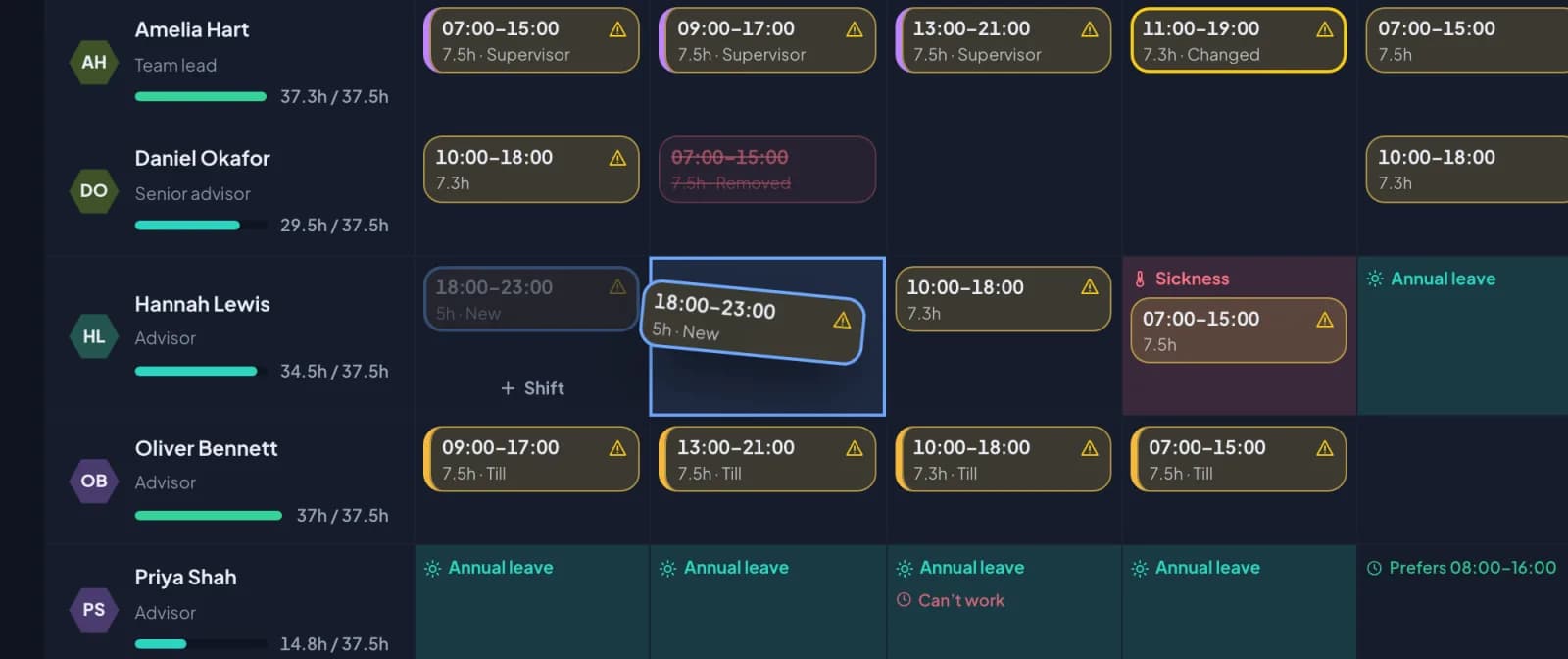
The shift is checked again wherever it lands. If it breaks a rule there, for example because the person is on approved leave, it’s still moved but shown in red, and must be fixed before you publish. Only placements that could never be published, such as a day after someone has left, are refused.
Starting from something
You rarely need to plan a week from nothing:
- Copy last week copies every shift from the week before as drafts. Anything that no longer fits, such as a shift on a day someone has now booked off, is skipped, and RotaTiger lists what it skipped and why.
- Plan usual days turns each person’s usual days into draft shifts. Usual days come from their rota pattern, so if someone normally works Monday to Thursday from 09:00, that’s what you get.
- Templates lays a saved week, such as your standard week, onto this one as drafts. See templates.
- Auto-fill drafts the week from your staffing needs. It has its own page: auto scheduling.
Finding people
Filter by name or job title, pick a group, or switch on Rota staff only to hide everyone on a set pattern.
A guide in the app
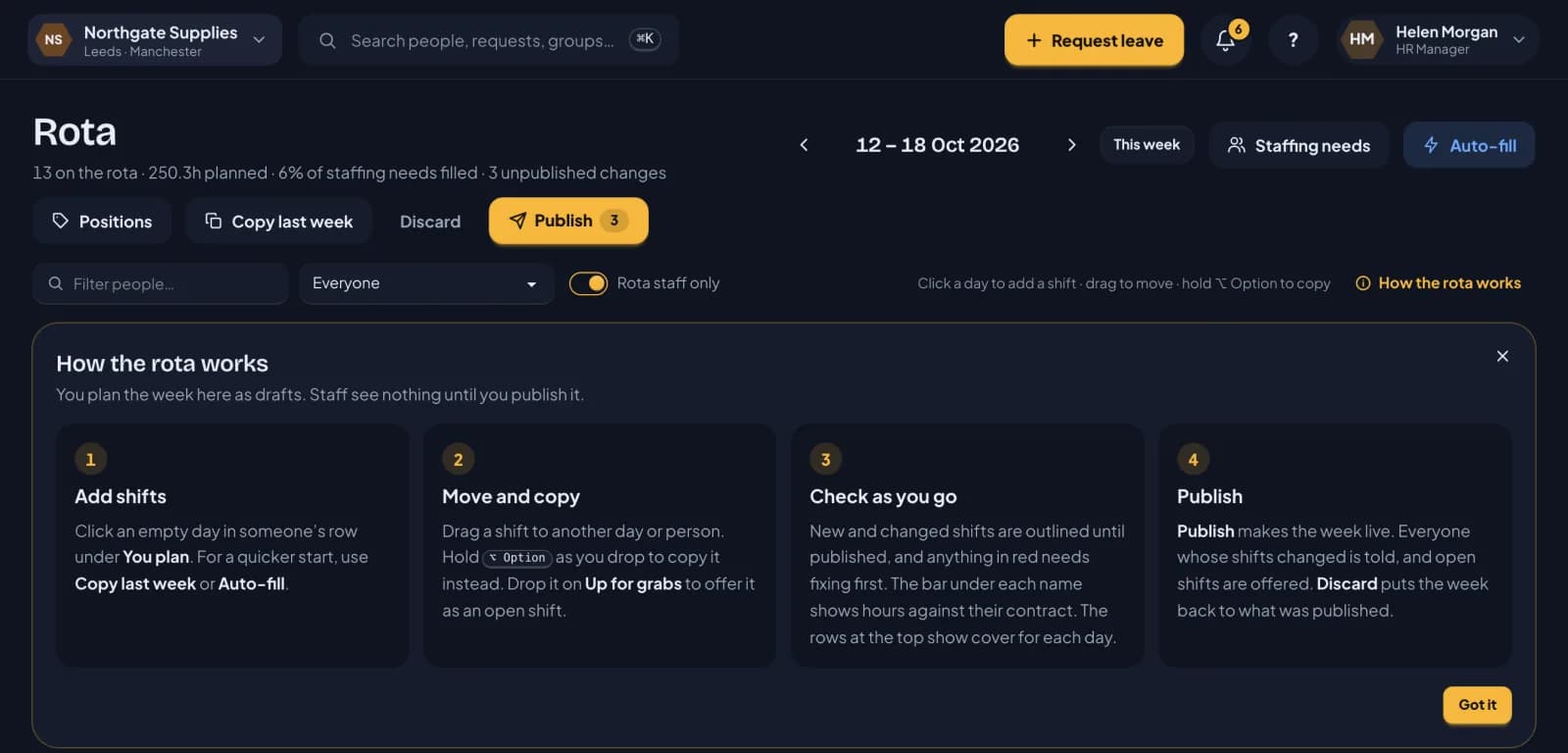
The first time you open the rota, a short guide explains these steps. You can open it again from How the rota works, next to the filters.
The guide also explains who’s on the rota, which depends on each person’s working pattern:
- Standard hours (a fixed weekly pattern) and shift cycles (a rotating pattern) plan themselves, so they’re shown for cover under Everyone else.
- Rota staff (contracted hours) and casual staff (a variable pattern) are the ones you plan here.
Who can plan
HR plans everyone. Line managers and their delegates plan their own team, but not their own shifts. Publishing, copying and discarding only ever touch the people you’re allowed to plan.