
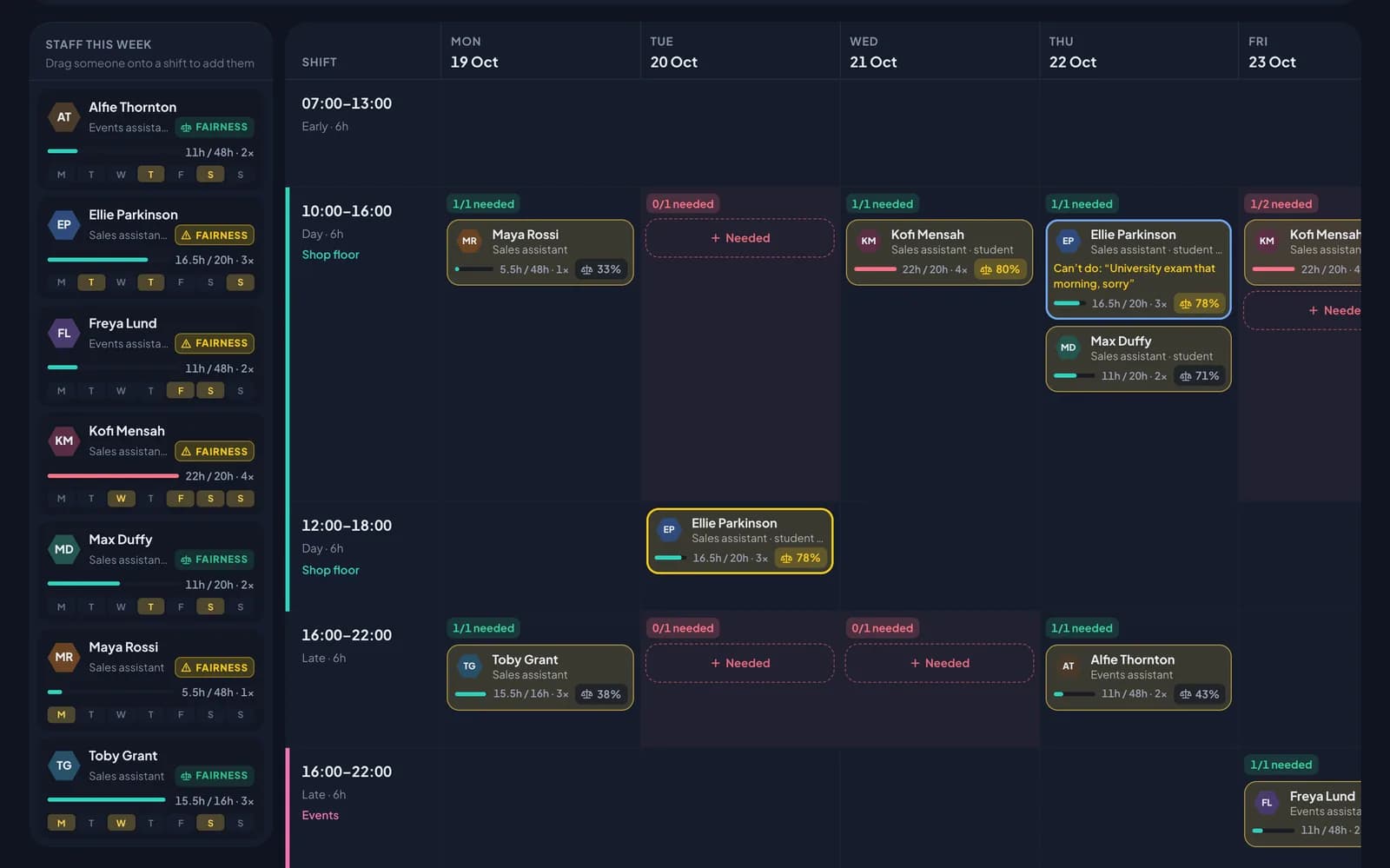
The usual rota shows people down the side. That’s the right way round for checking someone’s week, but not for asking “who’s on the late shift on Wednesday?” The By shift view answers that.
Switch between By person and By shift above the grid. RotaTiger remembers which one you used last.
Shifts down the side
In By shift, each row is a shift: its times, whether it’s an early, day, late or night shift, and its position if it has one. The rows come from your staffing needs and from the shifts already planned that week.
Each day shows:
- how many are on the shift out of how many are needed, in green when it’s full and red when it’s short
- a card for each person on it, with their hours for the week and how many shifts they have
- open shifts, if nobody has taken one yet
- a dashed Needed place for every gap. Click it to add a shift for that gap, or drag someone onto the shift.
People on set patterns, such as standard hours or a shift cycle, aren’t shown here, because their days come from their pattern rather than the rota.
The staff list
Down the left is everyone you plan that week. Each person shows:
- their planned hours against their contract, or against their weekly cap if they’re casual
- how many shifts they have
- a strip of the week, Monday to Sunday, showing the days they’re working, on leave, or have said they can’t work
- their Fairness badge
Drag and drop
- Drag a person from the staff list onto a shift to put them on it for that day.
- Drag a shift card to another day or another shift to move it. Dropped on a different shift, it takes that shift’s times and position.
- Hold Alt (Option on a Mac) as you drop to copy it instead.
Every shift is checked where it lands, exactly as in the By person view. If it breaks a rule, such as taking someone over their hours, it’s still added but shown in red, and it must be fixed before you can publish.
Fairness
Some shifts are less popular than others. Fairness helps you share them out, so the same people aren’t always on the late finish or working every weekend.
For each person, RotaTiger looks at the four weeks before the week you’re planning plus this week’s shifts, drafts included, and counts:
- Early shifts, starting before 08:00
- Late shifts, finishing at 20:00 or later, or starting from 14:00
- Night shifts, running past midnight or starting from 20:00
- Day shifts, everything else
- Weekends
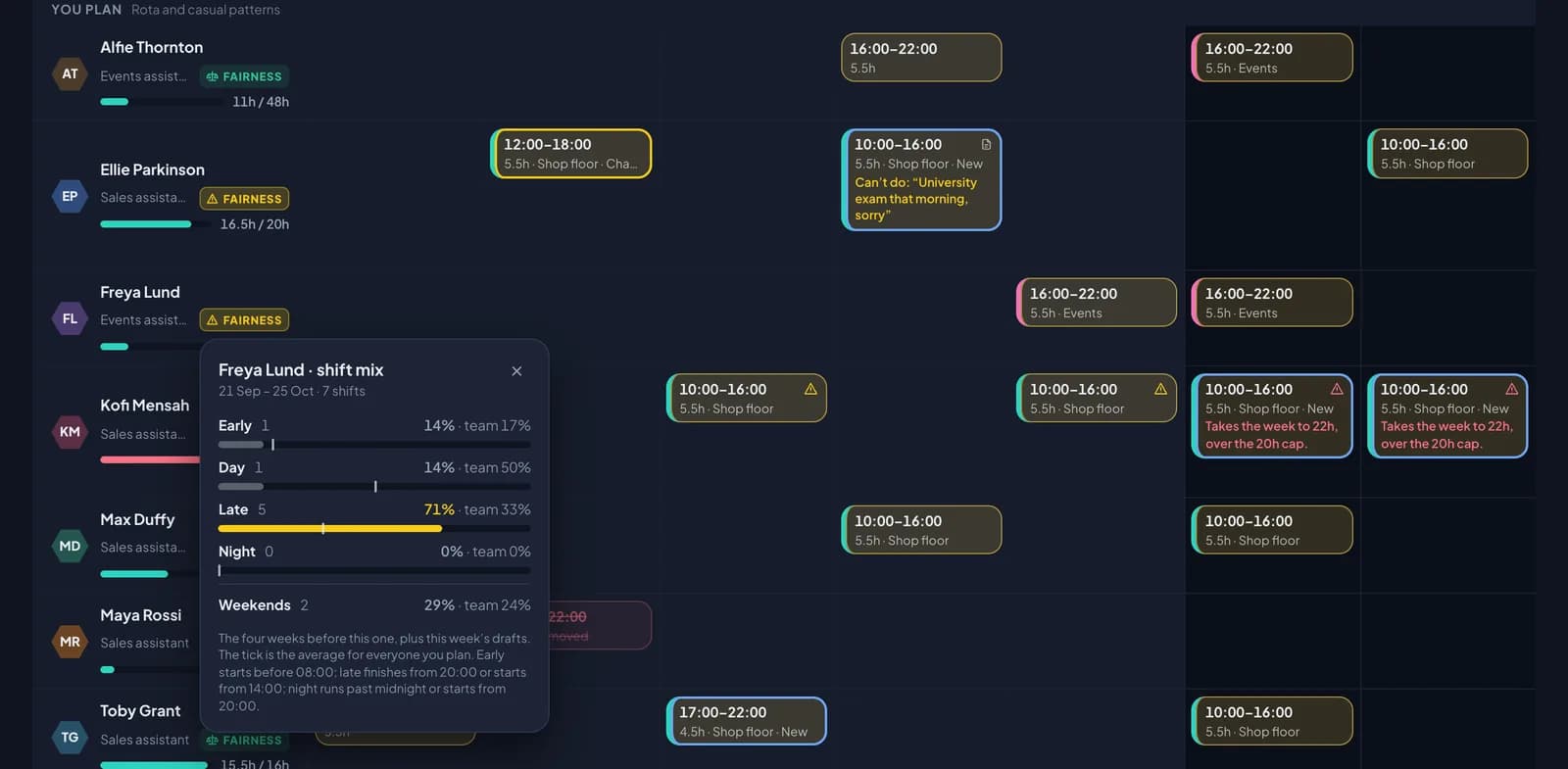
Click FAIRNESS under someone’s name, or the share on their shift card in By shift, to see their mix against the average for everyone you plan. The tick on each bar is the team average.
The badge is green normally. It turns amber when one kind of shift makes up at least half of someone’s shifts and is well above the team average, which usually means they keep getting it. It’s a prompt, not a rule: some people ask for lates.
Auto-fill uses the same idea when it chooses who to put on weekends, nights and late finishes.