
Break rules
RotaTiger adds breaks to shifts based on your company’s break rule. The rule sets how long a shift can be before it needs a break and how long that break must be. It starts from your country’s default:
- UK: shifts over six hours need a 20-minute break, taken during the shift rather than at its start or end. That’s the legal minimum under the Working Time Regulations.
- US: there’s no federal rule requiring rest breaks, so the default is common practice: shifts over six hours get 30 minutes. Some states have their own rules, such as California’s, so check yours.
To change the rule, go to Settings → The rota → Breaks. Set the shift length that requires a break, the break’s duration, and whether it has to be during the shift. Reset restores your country’s default.
The rule is used in three places:
- New shifts get a break when they’re long enough, whether you type them, drag someone on or copy a week. Short shifts don’t get one.
- Every shift is checked. The rota warns, in amber, when a required break is missing or too short, or when its position doesn’t meet your rule.
- Fill, Arrange and Auto-fill add a break with each shift they make.
Smoking breaks aren’t a legal right. Whether you allow them, and whether they’re paid, is up to you. Breaks in RotaTiger are unpaid time within the shift: paid hours are the shift’s duration minus its break.
When the break is taken
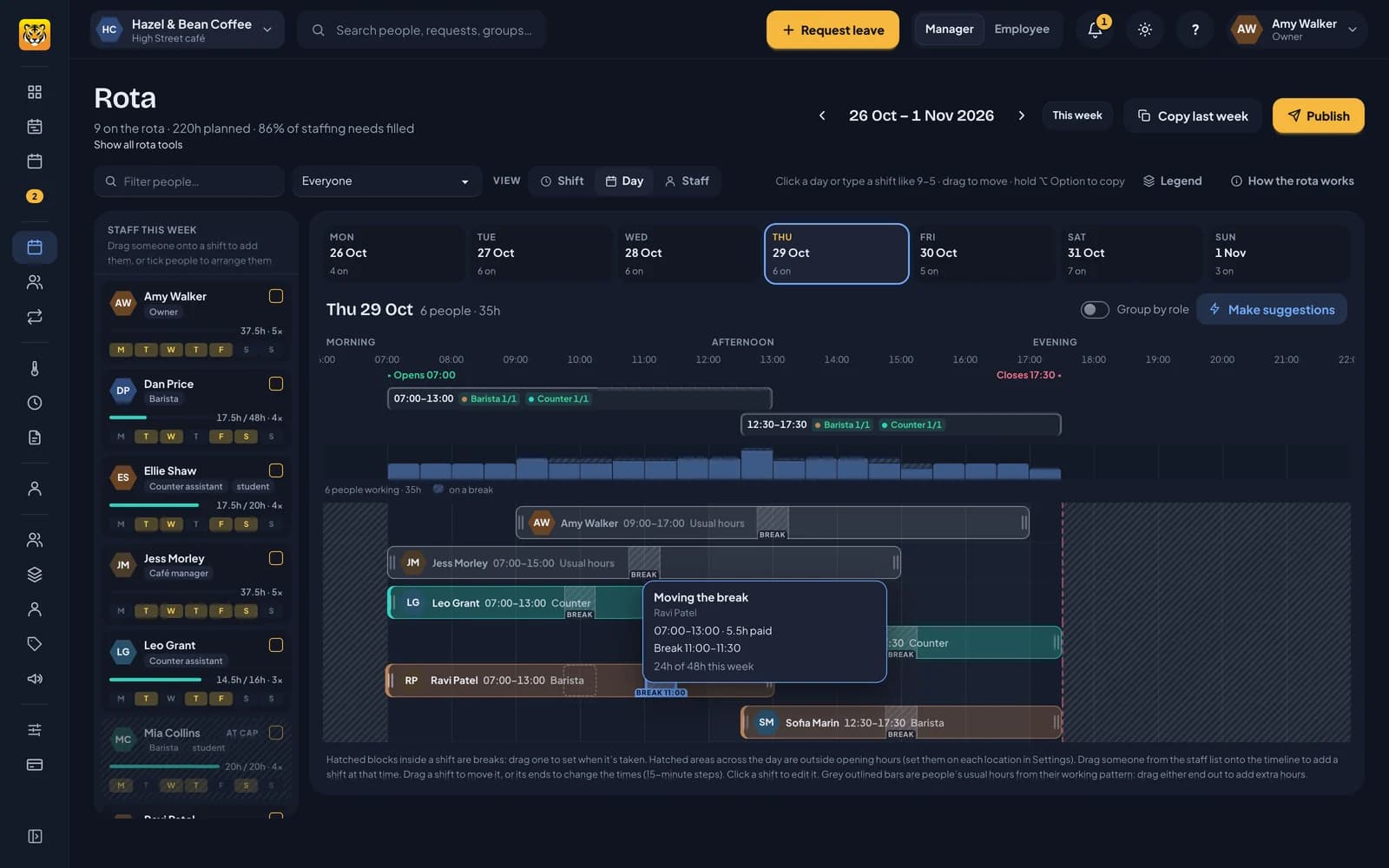
Each break shows inside its shift. Until you place it, it sits in the middle of the shift.
On the day view, drag the BREAK tab along the bottom of a shift to choose when it’s taken. It lifts out as you drag, showing its new time, and a dashed outline shows where it was. Press Esc to put it back. The staffing chart at the top shows how many people are on a break each half hour, helping you stagger lunches and keep the counter covered.
Rest between days
The minimum rest set on someone’s pattern, usually 11 hours, applies between working days. It runs from the end of one day’s last shift to the start of the next day’s first shift. Two shifts on the same day with a gap between them (a split shift) aren’t treated as a rest problem.
Opening hours
Set each location’s opening hours in Settings → Locations: tick the days it’s open and set the times, or use Same every open day. If a location is set to close on bank holidays, it shows as closed on those days.
On the day view, opening and closing times show above the timeline. Hours outside them are hatched, and a line marks closing time. The card that appears as you drag a shift warns when it starts before opening or runs past closing. You can still schedule those shifts when someone needs to open up or cash up.
Next: send the week for review.