
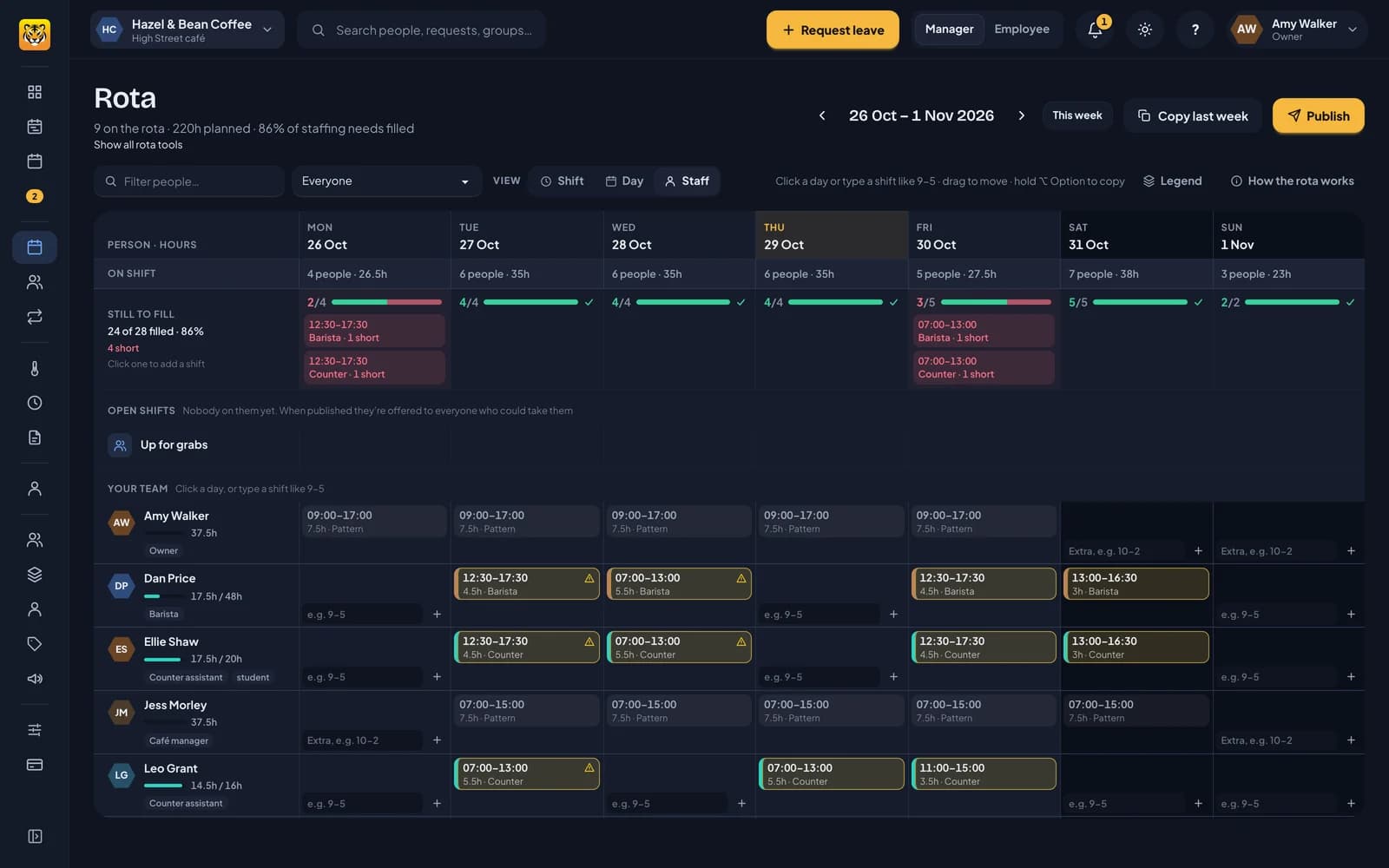
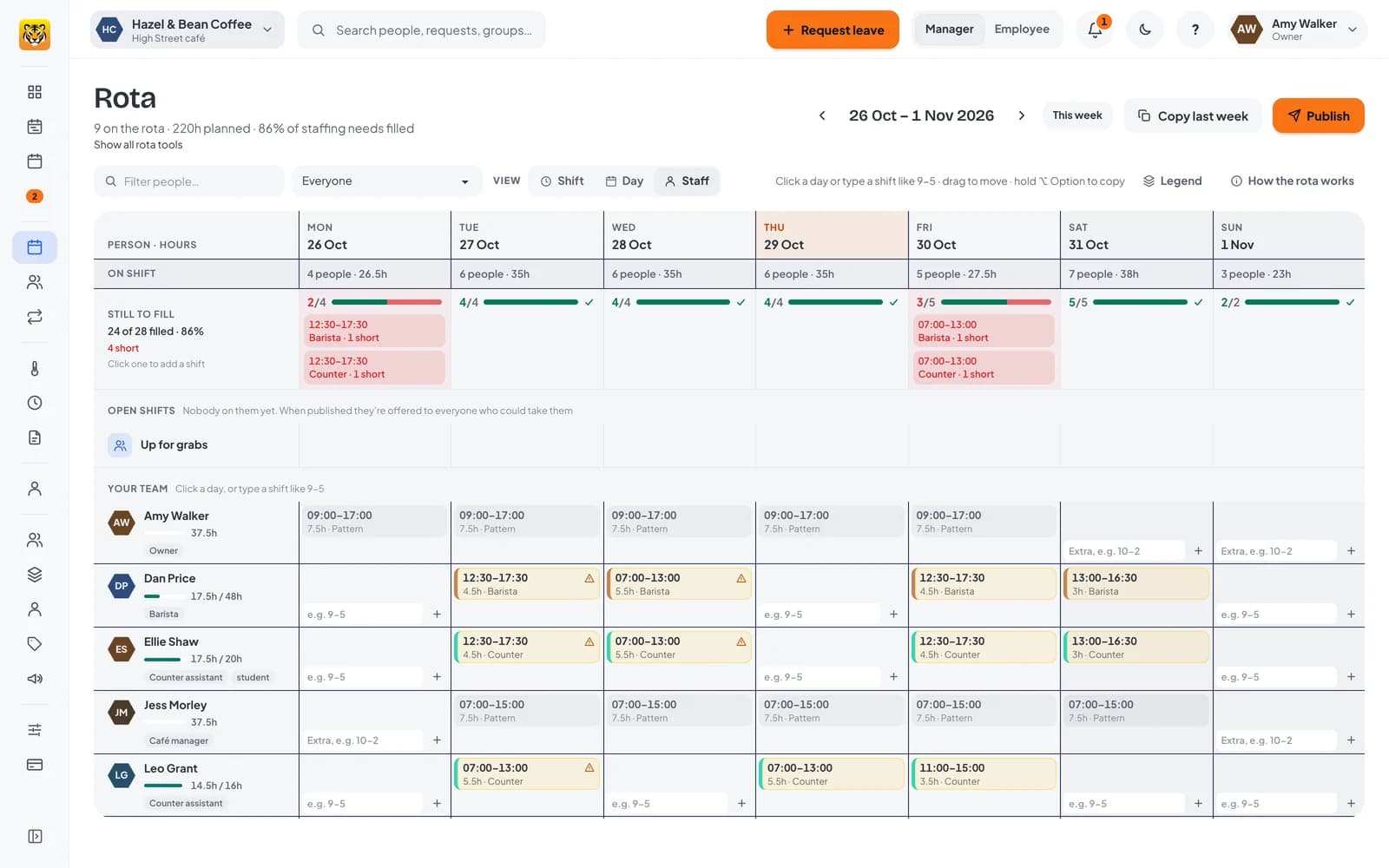
Simple mode helps small teams put next week’s shifts on the rota and make sure everyone knows when they’re working. It shows people and days, with tools such as staffing levels, templates and fairness scores tucked away until you need them.
Simple mode
Choose it in Settings → The rota, or when the setup wizard asks how your team works. You’ll see who’s working when, their hours for the week, and any leave or days they can’t work. Positions, staffing levels, Auto-fill, templates, fairness and sending the week for review are tucked away.
To use any of those tools later, click Show all rota tools under the rota’s title. Nothing you’ve planned changes.
Every shift is still checked as you place it. Holiday and sickness show in the grid, and nobody can be booked on a day they’re off.
Type a shift in
Every empty day has a box. Click it, type the shift, and press Enter to save it:
- 10-2 is 10:00 to 14:00. RotaTiger reads the finishing time as 2pm.
- 7-3, 9-17, 7a-3p, 9:30-17:30 and 7am – 3.30pm all work.
- 22-6 runs overnight into the next day.
- Add a break: 8-4 30m or 8-4 b30.
- Anything else is a note for the person: 8-4 stocktake puts “stocktake” on their shift.
If RotaTiger can’t read it as a shift, the shift editor opens with what you typed kept as the note. Shifts long enough to need a break get your usual one, unless you typed your own.
You can also use + in the day to open the shift editor, with quick times from the week’s most common shifts.
Copy last week
Copy last week copies every shift from the week before as new shifts on the current week. Anything that no longer fits, such as a shift on a day someone has since booked off, is skipped. You’re told what was skipped and why.
Undo removes everything that copy added, as long as you’re still on that week.
Undo anything
Every change you make on the rota goes on an undo list: a shift added, moved, resized, copied or removed. The Undo button at the top names the last change, such as Undo Ravi’s move. Click it repeatedly to undo earlier changes.
Changes that go live as you save
To make changes live without a Publish step, go to Settings → The rota and switch on Changes go live as soon as you save them.
- Each change is live the moment it’s saved. There are no drafts.
- Once you’ve stopped making changes for half an hour, everyone whose shifts changed gets one email and notification covering those changes.
- Messages about changes for today or tomorrow are sent straight away.
- A shift that breaks a rule, such as booking someone during their holiday, isn’t saved. You’re told why.
Leave it off to plan in drafts and publish when you’re ready.
People who haven’t joined yet
You can give people shifts before they sign in. Someone who hasn’t joined RotaTiger yet shows on the rota with Shifts by email and an Invite link. Give them shifts like anyone else: they get their shifts by email when you publish the week, or through the messages described above if changes go live as you save.
Once they join, they see their shifts on their phone, set their availability and can take open shifts.
Try it with a sample café
To try the rota before adding your team, open Hazel & Bean Coffee from the setup checklist, or choose just looking when you register. The sample café has a manager, a weekend supervisor and six casual staff, with three weeks already published and some holiday booked. You can try the tools without setting up a team. Samples are free and are deleted after 24 hours.
Next: planning the week.