
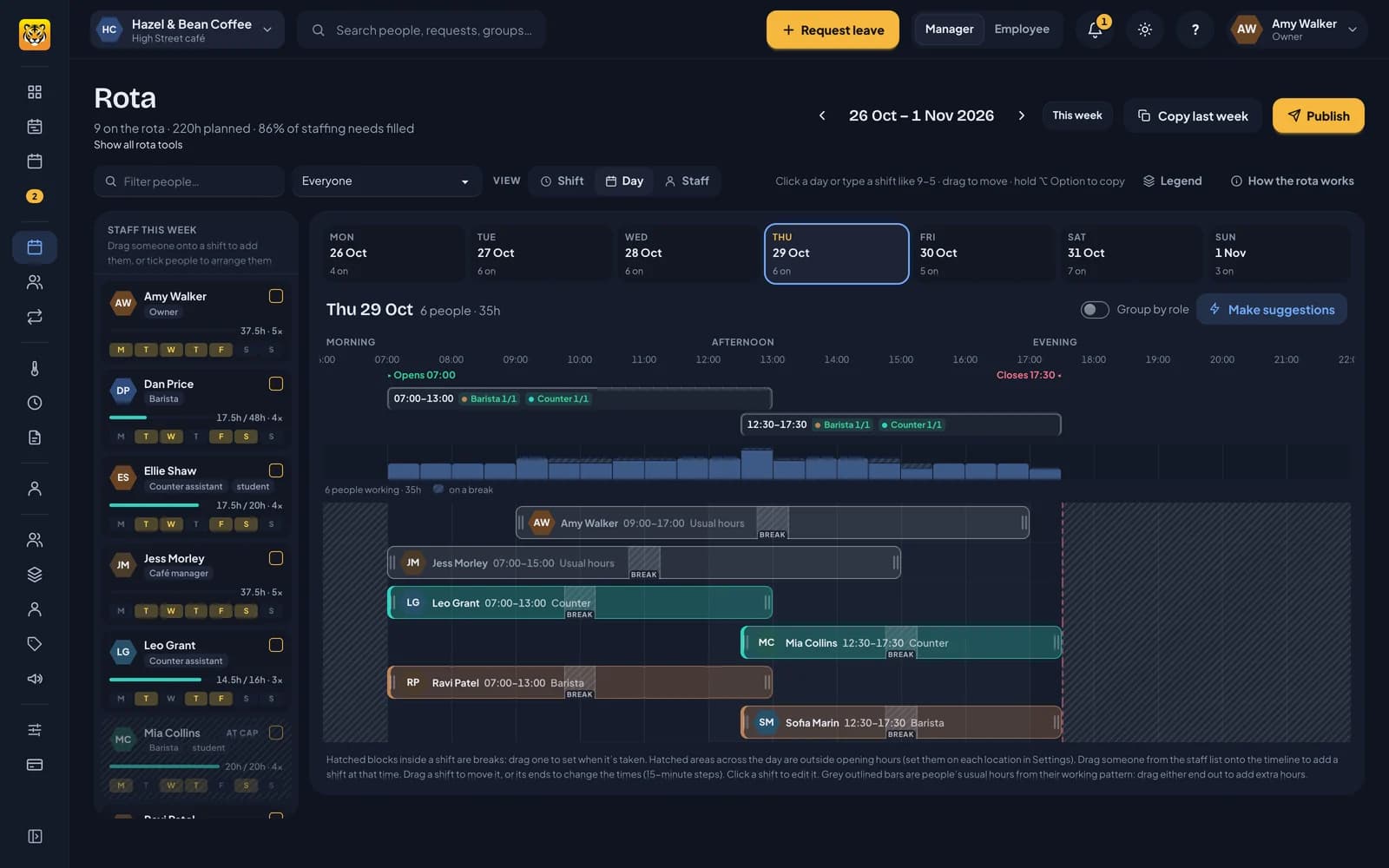
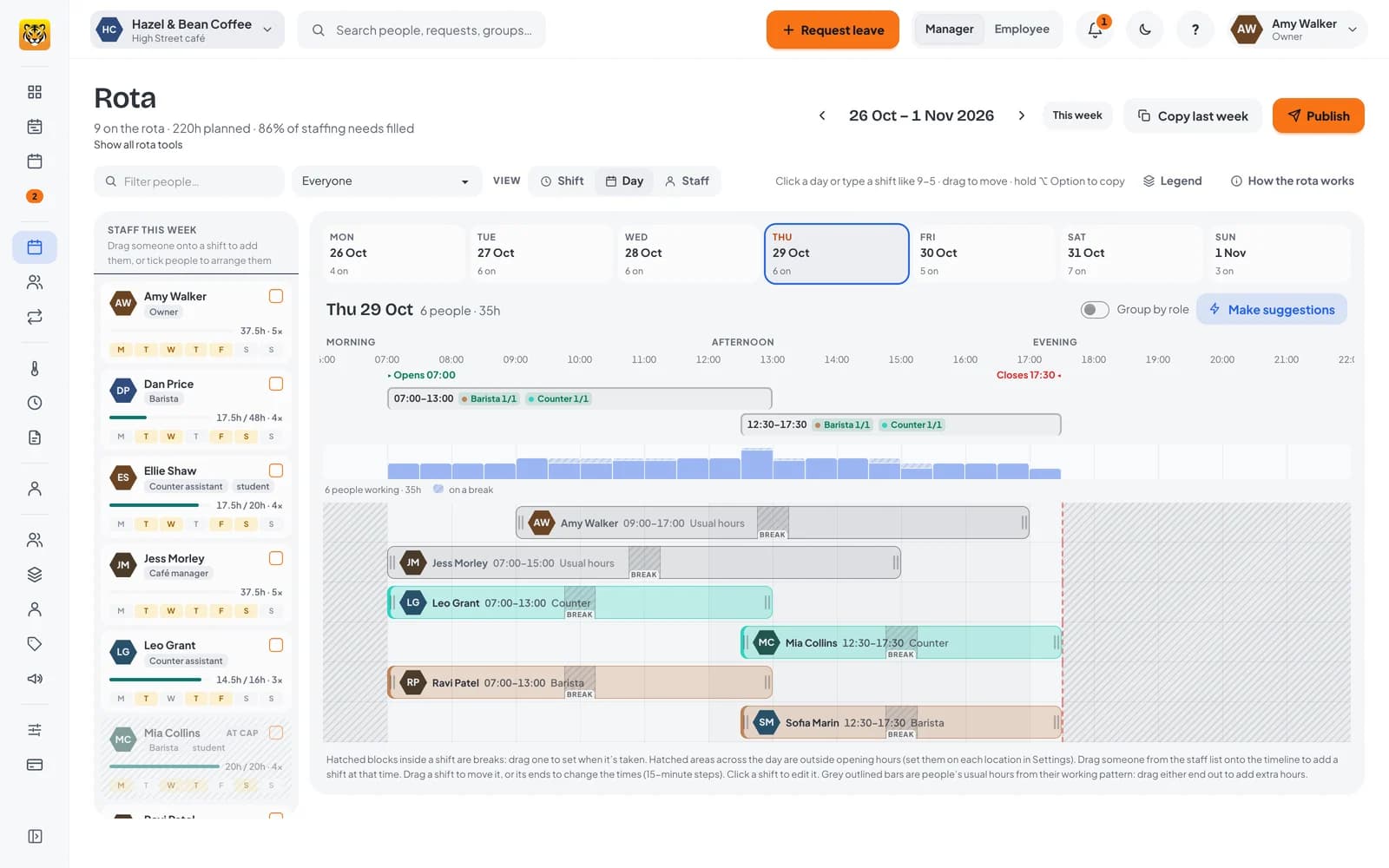
The Day view shows everyone’s shifts for one day on a timeline. Use it to plan who opens, who closes, who’s on at lunch and when everyone takes their break.
Pick Day under View, above the grid, then pick a day from the tabs. Each tab shows how many people are on that day.
What the Day view shows
From the top:
- Opening hours. When the location opens and closes, from its settings. Hours outside opening times are hatched down the timeline, and a red line marks closing time. If the location is closed all day, it says so.
- The shifts you need. If you’ve set up staffing needs, each shift you need that day is drawn over its hours, such as 07:00–13:00 Barista 1/1 · Counter 0/1. A shift that’s still short has a red outline. Point at one to highlight its hours down the timeline.
- People working. A bar for every half hour shows how many people are on. It turns red when there are fewer than you need. The hatched top of each bar shows how many are on a break, so you can check how breaks affect staffing.
- A line for each person, showing every shift they work that day, including usual hours for people on fixed patterns. Lines are in name order, so people stay put while you change their shifts. Faint lines mark each hour.
Turn on Group by role to put people under their role for the day, such as Barista or Counter.
Shifts are coloured by role. Hover over one to see its times, paid hours, break, role, note and anything RotaTiger flags for you to check.
Add someone to the day
The staff list down the left shows everyone you plan shifts for, with their hours for the week. Drag a person onto the timeline:
- As you drag, a dashed outline shows where their shift will go and its times, such as Mia · 09:15–13:15. It follows the pointer in 15-minute steps.
- Let go to add the shift. If they already have a line that day, it goes on that line; otherwise, a new line opens in name order and the people below move down to make room.
The new shift is as long as the last one you added, with a break if it’s long enough to need one. Change its times by dragging its ends.
Move a shift or change its times
- Drag a shift to move it.
- Drag either end to change the start or finish. A grip appears when you hover.
- Both work in 15-minute steps.
As you drag, a card above the pointer shows the new times and paid hours, when the break falls, and how much longer or shorter the shift is. It also flags anything to check: starting before opening, running past closing, overlapping another shift, a break that’s too short for the shift, going over a weekly cap, leave, or a time the person has said they can’t work.
Press Esc during a drag to put the shift back where it was, with nothing saved. Let go to save the change. Undo is available at the top if you need it.
Click a shift without dragging it to open the full shift editor.
Breaks
Every shift with a break shows it as a hatched block, with a small BREAK tab along the bottom. Drag the tab to set when the break is taken. While you drag, it lifts out with its new time, and a dashed outline shows where it was.
Until you place it, a break sits in the middle of the shift. Your break rules are checked as you go: see breaks and opening hours.
Let RotaTiger suggest shifts
Make suggestions offers shifts for the day based on:
- people who are free and have hours left, for each gap in the shifts you need
- rota staff’s usual days, for a week that isn’t planned yet
- the same day last week
Tick the suggestions you want, then add them. Nothing is added until you do.
Next: the Shift view and fairness.