
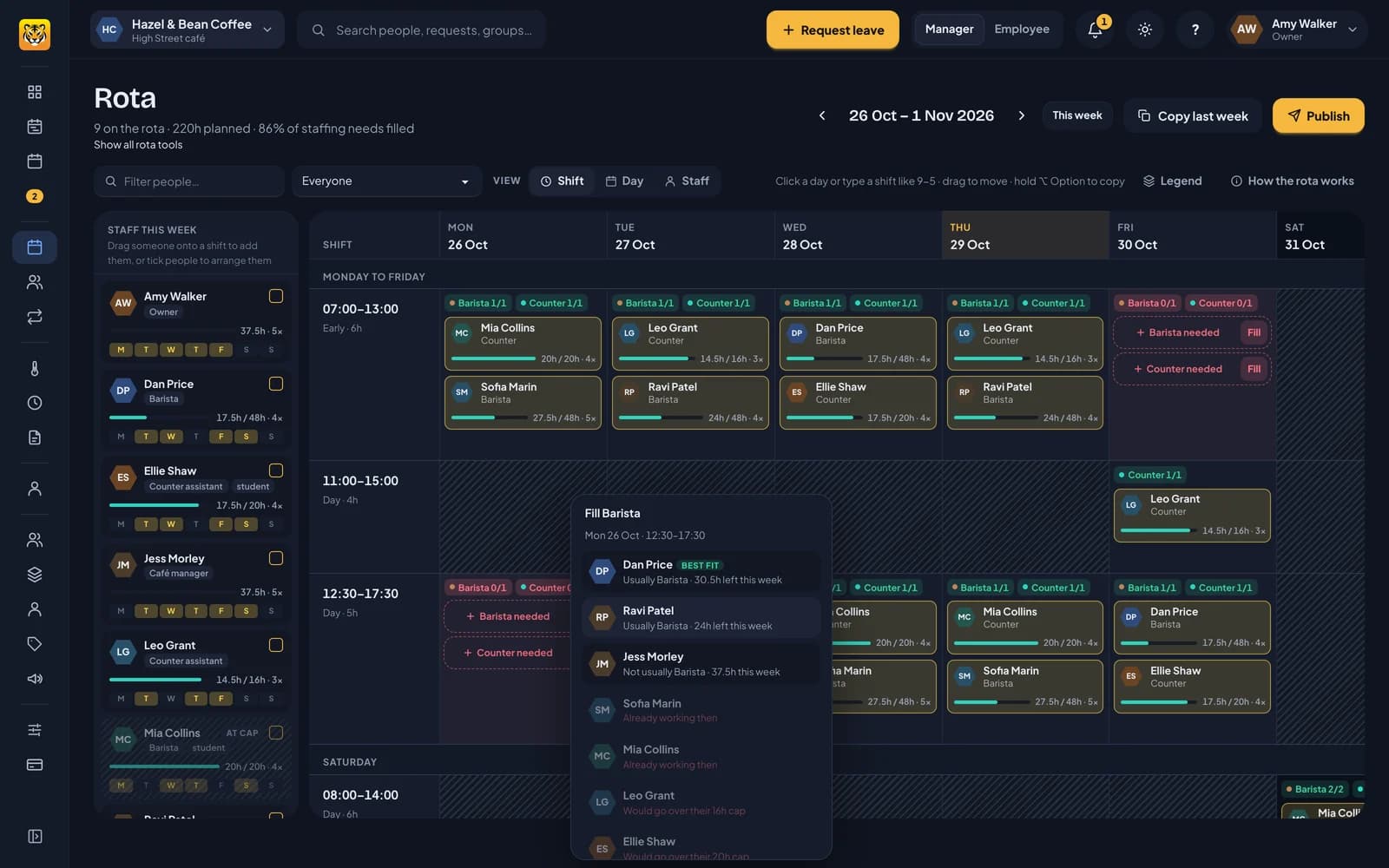
Fill helps you choose someone for one gap. Arrange puts the people you tick into the shifts you still need. To draft a whole week from your staffing needs, use Auto-fill.
Fill one gap
In the Shift view, every gap shows as a dashed place such as Counter needed, with a Fill button. Click Fill to see your staff ranked for that shift, based on:
- whether they’re free then and have room in their week
- whether they usually work that role
- whether they have enough contracted hours left to cover it
- who has the fewest hours so far
The first person is marked Best fit. Each person has a short reason, such as Usually Counter · 8h left this week, or Not usually Barista · Hours used this week, to explain their position in the list.
People who can’t take the shift are faded, with the reason in red: they’re on leave, they’ve said they can’t work then, they’re already working then, they’re not working here that day, or the shift would take them over their weekly cap.
Click a name to add the shift with the gap’s times, role and break. It’s checked like any other shift, and Undo removes it.
If you’d rather use the shift editor, click the gap itself rather than Fill. The editor opens with the times and role filled in.
Arrange the people you tick
If you know who is working but not when, tick them in the staff list on the left in the Shift or Day view. An Arrange button appears with the number you’ve ticked.
Arrange puts them into the shifts you still need:
- in the Day view, for the day you’re looking at
- in the Shift view, for the whole week
It works like Auto-fill but only uses the people you ticked. It respects their availability, leave, weekly caps, rest between days and the roles they usually work. Any gap they can’t cover stays unfilled. Arrange never makes open shifts.
When it’s done, you see which shifts it added, who went where and why, and what’s still to fill. Undo in that window removes everything that run added.
Arrange only fills gaps in your staffing needs. It doesn’t move anyone who already has a shift.
Who’s out of hours
In the staff list, anyone who has used up their hours for the week is faded and hatched, with HOURS USED (they’ve reached their contracted hours) or AT CAP (they’ve reached their weekly cap). You can still tick them or drag them on. These markings help you spot who has hours left when choosing someone for a shift.